Unlock For Us

How to Open/Load .ISO Files in Windows Vista/XP

Plenty of programs and installation disc are now compiled in .iso format. ISO File is a disk image of data on a CD-ROM. Sometimes, it refers to any optical disc image and a UDF image. For short, it is a copy of your CD/DVD.

In Windows XP: MS Virtual CD-ROM Control Panel, the nifty small utility from Microsoft can mount it easily for Free.

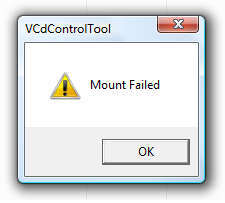
How about if you open and use it to mount images in Windows Vista? This Error message will appear, "Mount Failed"
vistafailed

Thankfully there's a utility that will do it flawlessly called Virtual Clone Drive.

file association

This feature is the one that I like, It automatically associate the files to mount and open when the user click the file.

There is no need to mount CD/DVD image anymore. But If you like to mount them, that feature is supported...

The software is too simple.

Others:

MagicDisk - This utility is another good competitor and gives you more options Like Encrypts ISO image and Compresses ISO image, Make CD/DVD image from CD/DVD and many more.

Daemon Tools – Try this also


Other Topics:

CPU-Z, a useful System Profiler tool

Windows DVD Maker, create your own Professional-looking video DVDs

CDBurnerXP, burns Blu-Ray and HD-DVDs for FREE

Quicktip: How to prolong your Laptop Battery
Read more...

Unlock For Us

FREE PHP and MySQL Hosting, Web Hosting For Everyone!

If you wish to have a professional shared hosting quality in a free hosting package, This is it! Web hosting for Everyone! 

  • 250 MB of disk space
  • 100 GB of data transfer
  • PHP and MySQL support with no restrictions
  • cPanel control panel
  • No advertising!

Click and open the banner below:

Free Web Hosting

Note: You need to wait one day in some cases

cPanel Powered Hosting
cPanel has a lot of features: Webmail, File Manger (FTP/WEB), Website Redirection, Backups, Password Protect Directories, Subdomains, and much more...

Host unlimited domains!
It allows you to create unlimited physical cPanel accounts. Host as much accounts and domains as you need.

Over 500 FREE website templates
Free POP3 Email Box
Webmail access

What else can you ask for?


Read more...

Unlock For Us

Virtual Girl of the Future, A.I. (Artificial Intelligence)?

amazing girl

This girl freaks me out! She always follow my cursor and randomly, smiles at me. Some says the eyes came from linux/unix app xeyes. But everybody who visited and saw this was amazed.

Artificial Intelligence?

If I will have an opportunity to re-invent the Virtual Girl of the future, I will teach her how to speak, sing a song, teach some vocabulary, reminds me of my task and many more.

Although this may sounds a dream but I hope so...

View the Virtual Girl Of the Future


_______________________________________________________

More Articles:

Fun Stuff! Hack your Windows Experience Index (WEI) score

UnlockMe! Hide your computer in the Network

UnlockMe! Low 'Virtual Memory' warning on Windows Vista

Shutdown, Restart, Lock, Sleep Or Hibernate your Computer using the Middle Mouse Button


Read more...

Unlock For Us

Windows Vista SP1 File Removal tool: Free up more space on your hard drive

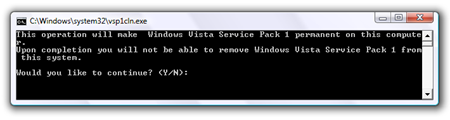
This tool will make Windows Vista Service Pack 1 permanent on your computer. Thus, After running the program you will save more space on your computer but you will not be able to remove Vista SP1 anymore.

Freespace

How? Open the Run Window (Win+R), Type vsp1cln.exe and press enter. Press Y and you will see the message "Performing Windows Vista Service Pack 1 Disk Clean-up"

More Articles:

[Vista] Hibernate Button is gone

Partitioning your Drive in Windows Vista using the Disk Management utility

Windows Vista Unlocks, Guides, Tutorials, News, Tips and Tweaks

How to Remove/Disable Start-up programs in Windows Vista

UnlockMe! "Windows has blocked some startup programs"


Read more...

Unlock For Us

Shutdown, Restart, Lock, Sleep Or Hibernate your Computer using the Middle Mouse Button

shutdown reboot

Last time, I wrote several articles and documentation's regarding the Middle Mouse button Customizations in Windows Vista.

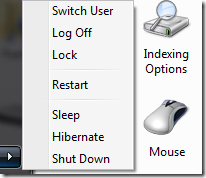
Here's another tip: Shutdown, Restart, Lock your Computer / Workstation, Sleep or Hibernate using the scroll wheel button easily.


How?

1. Read the previous article:

How to launch programs using the Middle Mouse button

2. At number 8, Choose which option you want to set and enter the command colored in blue:


Shutdown your Computer

Shutdown.exe -s -t 00

- Force all applications to close and shutdown immediately

or

Shutdown.exe -s      (After 30s...)

---------------------------------------------------------------

Restart Computer

Shutdown.exe -r -t 00

---------------------------------------------------------------

Sleep Computer

Rundll32.exe powrprof.dll,SetSuspendState Sleep

If it hibernates instead of Sleep: Hibernate must be OFF

http://support.microsoft.com/kb/555569

---------------------------------------------------------------

Lock your Computer

Rundll32.exe user32.dll,LockWorkStation

--------------------------------------------------------------

Hibernate Computer

Rundll32.exe Powrprof.dll,SetSuspendState

doesn’t work?: Hibernate must be enabled

http://support.microsoft.com/kb/555569

How to turn off / On the Hibernate feature: powercfg

powercfg -hibernate off

powercfg -hibernate on

That's it!

If the Sleep or Hibernate command is not working. Check first, if your computer supports these sleep states: Open the command prompt (cmd.exe) and type, powercfg -a

_________________________________________________________

The following sleep states are available on this system: Standby ( S3 ) Hibernate Hybrid Sleep
The following sleep states are not available on this system:
Standby (S1)
        The system firmware does not support this standby state.
Standby (S2)
        The system firmware does not support this standby state.

_____________________________________________________

How about in Windows XP? Same procedure. Just install .Net Framework first.

Enjoy!

More Articles:

Eject your CD/DVD using a Keyboard Shortcut

How To Activate Flip 3d using the Middle Mouse Button / Scroll Wheel Button

How To Turn Off Aero using the Middle Mouse Button

Eject your CD/DVD using the Middle mouse button


Read more...

Unlock For Us

[Help] How to Setup Broadband DSL Internet Connection in Windows Vista for a Single PC

dsl

Recently, my friend John ask for help in setting up his DSL (Digital Subscriber Line) connection. Usually, these procedures can be seen in the manuals given by the Telecom company. But unfortunately, he lost all of them...

Things Needed that is usually given by the Internet Service Provider:

1. RJ11 port and cable (Also known as Telephone Cable)

2. 1 meter RJ45 UTP Cable (Also known as LAN Cable)

Connection of Hardware

connection

1. Connect the phone line to your DSL Modem (kinds: VDSL/ADSL/SDSL/RADSL/IDSL Modem)

2. Plug the LAN Cable from your PC Ethernet Card (LAN Card) to your DSL Modem, usually it is labeled as "LAN".

Method 1: Creating a PPPoE Internet Connection in Internet Explorer

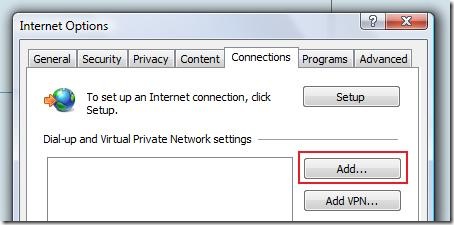
1. Open the Internet Explorer > Tools Menu > Internet Options

settting1

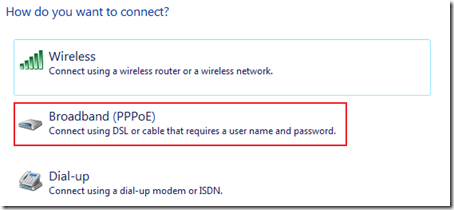
2. Choose the second Option (Connect using DSL or cable that requires a user name and password.)

settting2

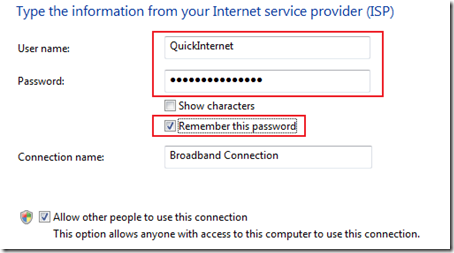
3. Type the Username and Password given by your Internet Service Provider (ISP). Click the Connect Button and finally, the Apply Button.

settting3

That's it!

4. If the Internet Connectivity test was unsuccessful, Please verify your username and password, and the connection of cables.

settting4

Method 2: Open the Control Panel > Network and Internet > Networking and Sharing Center > On the Left Pane, Click Setup a connection or Network > Choose a connection type, "Connect to the Internet" and click the Next Button. Then Proceed with the Method 1 #2 and #3... That's it!

If it doesn't automatically re-Connect and establish a connection: Go to Start Menu > Connect To Button, and then choose the PPPoE Connection you have created.

Enjoy Learning Windows Vista!

More How to Guides:

NEW Simple Way to Monitor Opened Files in a Shared Folder Across the Network

NEW [Vista/XP] How to Set up Ad hoc Wifi Wireless Networking Without a Router

NEW How to Share Internet Connection in Ad hoc Network


Read more...

Unlock For Us

How to Show/Hide Start Menu Search in Windows Vista Service Pack 1

I Unlock This First!!! (Restore the Original Settings)

Put back my Startmenu Search option! After installation of Windows Vista SP1, tons of users and friends ask me a question in bringing back the Search tool. "Why it was removed? it is very useful.  How to Restore my Search Button in Service Pack one? Bring it back Microsoft!"

After several minutes of thinking, suddenly something pops-up in my head. haha!!! WinBubble did it again! Although, I've just released the latest version of WinBubble, This is NEEDED. WinBubble 1.71

How to get it back? Download and open WinBubble 1.71 > Desktop Customization group > Click "Enable Start Menu Search" option and then Press Alt-A or just click the Apply Button. Don't forget to Log-Off and Login.

I'm sure tons of Publisher's and users will HACK WinBubble. Haha!

If your a publisher and you want the TWO commands to restore the Settings. Please email me... just give me a credit.

Note: Everybody can copy and paste this article, Please give a link Back to this page.

That's it!

Bad News: Microsoft patched the hack after several days. Anyway, Here's another Solution: Pin the Search Shortcut in the Start Menu


March 20, 2008

Recent News:

Here's what you want guys.
When you see Start_ShowSearch=1
HKEY_CURRENT_USERS\SOFTWARE\Microsoft\Windows\CurrentVersion\explorer\Advanced
Add Start_ShowSearch=1 in HKEY_LOCAL_MACHINE,
The tweak is very simple... :)

Two weeks ago, WinBubble can Bring Back/restore your Start Menu completely after installation of Windows Vista Service Pack 1. But Recently, SOME can't. Microsoft silently patched the hack? *not sure, I don't know...

More Articles:

Windows Vista Tips, Tricks, How to, Help-guides and Unlocks

Installing Windows Vista Service Pack 1

UnlockMe! Hardware Problem After Installation of Windows Vista Service Pack 1

Important Changes to Windows Vista Service Pack 1


Read more...


© Unlock For Us @2024| Blogger| License Agreement