Unlock For Us

[How] Opening Google Chrome SQLite V3 Format Database Files

Note: It is required that you must read the previous article to find out where the files are located and to learn how did I find out that it's an SQLite V3 Database.

How can we open or view the Google Chrome's Internet History files Database and find where Chrome Favorites (Bookmarks) is located?

1. Download SQLite Browser Program at SourceForge.Net.

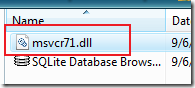
2. If There's an error while opening the files in Windows Vista. e.g. "This application has failed to start because MSVCR71.dll was not found...".

Search and Download the DLL file and put it on the same directory of the Database Browser Program.

msvcr71

Please Read more Possible Applications: Synchronize your Bookmarks / Favorites Across Two or more Computers (Passwords too!)

NEXT Reading and Unlocking the Files

1 2 3


Read more...

[How] Opening Google Chrome Files: History, Archived History, Cookies, Thumbnails and Web Data

You already located the files, learned how to view and read the Chrome Cache

Now, Let's explore all of them.

1. History File

Note: Again, you can only view the database if Chrome is closed.

Open the Database by pressing CTRL+O.

In Data Structure Tab, we can see all the Structure of the database. Using the tool, we can make a program that can access and read the Chromes Cache without seeing the source code. 
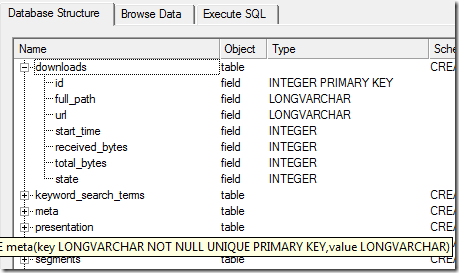
historystructure1

In the Browse Data Tab Choose the Table Downloads to access and view the list of files that has been downloaded including the location.

browsedataTab

You can even see the Keywords that you have used while searching by choosing keyword_search_terms Table
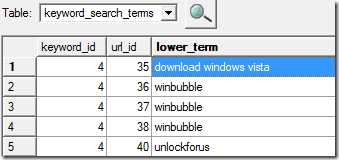
keywordterms 

urls Table: Complete list of the previously visited web sites
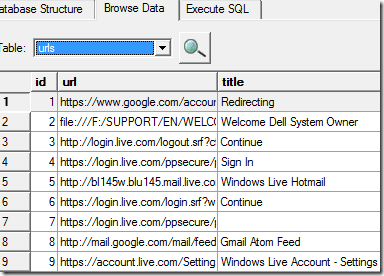
visitedurls

2. Bookmarks File - This is where Favorites are saved
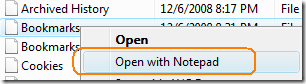
OpenwithNotepad

Using WinBubble "Open with Notepad" you can easily open the file.

bookmarksbar

This is really important because if you want to create a program that can sync the bookmarks to several computers. That's great!

Read here

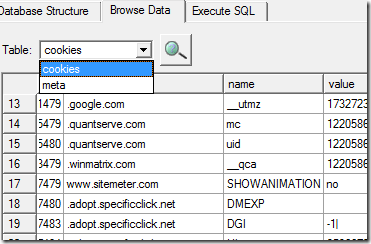
3. Cookies file

This is where the cookies are stored. How about the encrypted ones? (username and passwords...Look For Web Data File) It's encrypted, you need to decrypt the value to see the actual password. Please Read here
cookies

There are many exciting things that you can discover in this data... I'm sure in the coming days... There are many programs that will be created and provide an interface to these information's.

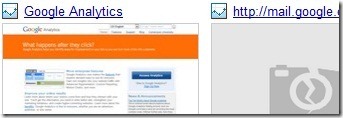
4. Thumbnails file – This is where the thumbnails are stored. If you want to refresh the pictures. Simply delete the file.

thumbnails

This will be the results… As soon as you visit the website, It will be updated.
thumbnailschange2

Please continue Exploring the other files.

Especially the Preference File (Clue: use WinBubble Context Menu again)

ENJOY!!!

1 2 3


Read More Articles:

Updated Directly Download Youtube Videos in Google Chrome (iUnlockThis: Youtube Hack Part 2!)

[Direct-Download] What is Google Chrome?

Read more...

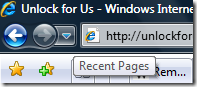
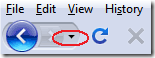
[Help] Where's the Recent Pages Button in Google Chrome? It's Gone!

"I wanted to go back and access one of the previously visited web pages but I have noticed that the small drop down arrow - Recent Pages button is missing. Is it hidden?"

ie firefox

Recently, more and more people are appreciating the speed and simplicity of the New Web Browser. The program was designed in a minimal simple interface but hidden features are buried deep within the browser.

googlechrome

In Firefox where the Recent Pages Button is too small to click, now gone in Google Chrome Web Browser.

Minimal Interface Design...

How? You can push the Backspace Button several times or Just Click and Hold Down the Forward/Back Button...

Enjoy!


Read more:

Tips and tricks: Google Chrome Secret Pages Hack!

[Direct-Download] What is Google Chrome?

NEW Google Chrome Temporary Files location (Cache), Bookmarks/Favorites Database Hack!

NEW [How] Opening Google Chrome SQLite V3 Database Files

NEW [How] Opening Google Chrome Files: History, Archived History, Cookies, Thumbnails and Web Data

[Help-Files] Find, Edit and Change Google Chrome Download Directory Location

[Help] Where is Google Chrome Homepage Button, Gone?


Read more...

Unlock For Us

[Help] Where is Google Chrome Homepage Button -Gone?

"There is no Home page Button, Missing or hidden? - Andrew"

You've got to love the Minimalistic Design of Google Chrome where Everything was designed as simple as possible.

firefox Firefox

ie Internet Explorer

Don't worry it is just hidden on your Google Chrome Option Window.

options

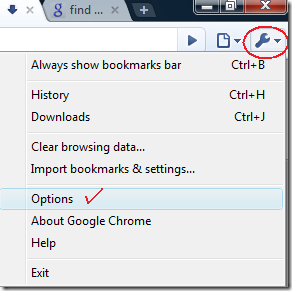
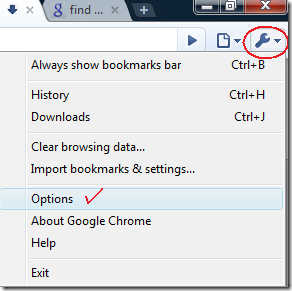
Click the little wrench button > Options

basicstab

At the Basics Tab, Go to Home page group and click to check "Show Home Button on the toolbar"

That's it!

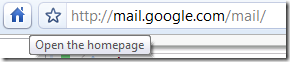
mail Now it's back!

Read more Google Chrome Tips:

Tips and tricks: Google Chrome Secret Pages Hack!

[Help] Where's the "Recent Pages" Button in Google Chrome? It's Gone!

[Help-Files] Find, Edit and Change Google Chrome Download Directory Location

[Direct-Download] What is Google Chrome?


Read more...

Unlock For Us

[Help] Edit, Find and Change Google Chrome Download Directory Location

"Hello Lawrence, Thank you for sharing Google Chrome... It's really fast. I'm still learning Windows Vista and Great Website! It's fun reading your tips and tweaks page. Especially the Youtube Hack, WEI score Hack and changing my Hard drive icons using WinBubble. I'm wondering where or how to find the file downloaded from a website? There is no ALT+T > Options - Bet"

thumbnail2

thumbnail

Hello Bet! Thank you for visiting my website and for using WinBubble. There are several ways to know the download location:

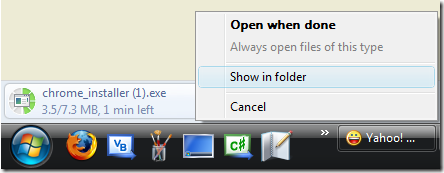
  1. While Downloading a file: At the Bottom Left-side of the screen, Click the Right Side - Drop Down Button and Choose "Show in folder". It's the equivalent of Open Containing folder in Firefox.
  2. To change the Download location, you need to go to the icon located as shown below:

options

Click the Options Menu Item > Google Chrome Option Window will open and just click the Browse Button to change the Download Location.

optionswindow

TIP: If you like to open Save As Dialog Window before downloading any file, click the option "Ask where to save each file before downloading"

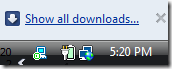
If you like to find the previously downloaded file: Just click the Show all Downloads link (While Downloading).

showalldownloads

or just press CTR+J (Same Keyboard Shortcut in Firefox)

history download

Google Chrome is simply amazing! Enjoy!

Read more: Tips and tricks: Google Chrome Secret Pages Hack!

NEW Google Chrome Temporary Files location (Cache), Bookmarks/Favorites Database Hack!

NEW [How] Opening Google Chrome SQLite V3 Database Files

NEW [How] Opening Google Chrome Files: History, Archived History, Cookies, Thumbnails and Web Data

[Help] Where is Google Chrome Homepage Button, Gone?

[Help] Where's the "Recent Pages" Button in Google Chrome? It's Gone!


Read more...

Unlock For Us

Tips and tricks: Google Chrome Secret Pages Hack!

aboutstats

While reading a comment on a published article at Neowin.net, I saw a unique trick shared by a user named Viktor. He found a hidden page while reverse engineering the software. A hack that will open a page full of information:

about stats

shhh! This page is secret!

Filtering out the stats:

filter

Examples: Timers

name

count time (ms)

Chrome:Init 764
History:InitTime 874
Gears:LoadTime 7
Chrome:ProcMsgL IO 99521


Also by typing About:Memory, it will open a detailed memory stats of each processes or opened websites. You can also find this out by Right-Click to the vacant top window colored blue area > Choose Task Manager > Stats for Nerds link

stats for nerds

Verdict: Wow! The new Google Internet Browser really has a great potential because of it's speed, stability and security.

If you have some comments and knowledge about the information given by the about:stats hack. Please post! Thanks in Advance...

NEW: More tips given by user Express:

about:hang, about:histograms, about:network, about:plugins

About:crash

aboutcrash

"Something went wrong while displaying this webpage. To continue, press Reload or go to another page."

Enjoy!!!

Read more: NEW Directly Download Youtube Videos in Google Chrome (iUnlockThis: Youtube Hack Part 2!)

[Direct-Download] What is Google Chrome? 
NEW Opening CD/USB Drive "Application not found" [Vista-XP Security: Virus/Worm Busted!]

Turn Off Aero using a Keyboard Shortcut

Unlock For Us YouTube Hack!


Read more...

[Direct-Download] What is Google Chrome?

Google Chrome

Google Chrome is a new web browser created as open source by Google in which tabs will be open as separate process designed for stability, speed and security.

RESULTS:

  1. This prevents other opened url/websites from interfering with each other. Using this modern operating systems designs (multiprocessing architecture) will result in a less memory overall.
  2. You can now see what websites are using more bandwidth to open.

Other Cool Features:

  1. Every time you open a new tab, there's a set of thumbnails of pages for easy access.
  2. An automated test are being done by a system called "Chrome Bot"
  3. Bad Garbage Collection of current Javascript Engines was fixed.
  4. SandBoxing will prevent malware from installing itself in every pc. If you close the tab, all the programs/code that runs on that tab will be terminated.

INNOVATION WAY: "It's in our interest to make the Internet better and without competition we have stagnation...As excited as we are about building Google Chrome, It's important to help ALL Browsers become MORE POWERFUL --" - Google.com

What can I say? WOW!

I recommend all people to read the comic book that will explain everything one by one. Not just For the Programmers and Geeks But For ALL.

Google Chrome Features: Comic book

To download the Google Browser: DOWNLOAD NOW

Try this Direct Download Link

NEW: Tips and tricks: Google Chrome Secret Pages Hack!

NEW Directly Download Youtube Videos in Google Chrome (iUnlockThis: Youtube Hack Part 2!)

NEW Google Chrome Temporary Files location (Cache), Bookmarks/Favorites Database Hack!

NEW [How] Opening Google Chrome SQLite V3 Database Files

NEW [How] Opening Google Chrome Files: History, Archived History, Cookies, Thumbnails and Web Data


Read more...


© Unlock For Us @2024| Blogger| License Agreement