Unlock For Us

How to change Windows Library Icons

libraryicons

Changing all library icons is easy! All you need to do is to follow these steps to start changing the icons.

Guide

Make sure the all hidden files and folders are shown – Press Alt + t + o + View tab and click to choose the option “Show hidden files, folders, and drives”

libraryicons_showhidden

and go to the path

"C:\Users\[username]\AppData\Roaming\Microsoft\Windows\Libraries"

libraryicons_browse

Make sure that what you see is the same as the picture above

Now open the folders by dragging the folders to notepad or just use the Open with Notepad feature of Winbubbles located at the general tab.

libraryicons_openwithNotepad and click the Apply Button

libraryicons_openwithNotepad3

Its easy! Just right-click and use the feature to locate the XML data

<iconReference>imageres.dll,-1003</iconReference>

Simply change imageres.dll,-1003 to the path of the icon e.g. C:\Windows\System32\SensorsCpl.dll,14 or [filename] only

If it is difficult to find icons, it is recommended to use all the built-in icons that you can find in windows using winbubbles to prevent mistakes. just go to Icon Tab and click browse to launch the icon browser window.

libraryicons_icontab 

and use the right side portion to get the path and file by pressing down arrow ↓

libraryicons_rightside

Sample

Library Icon Original Icon Change to
Documents imageres.dll,-1002 C:\Windows\branding\shellbrd\shellbrd.dll,2
Music imageres.dll,-1004 C:\Windows\system32\NetworkMap.dll,7
Pictures imageres.dll,-1003 C:\Windows\System32\SensorsCpl.dll,14
Video imageres.dll,-1005 same

Results

libraryicons_results

Cool Right?! Enjoy!


Read more...

Unlock For Us

Adding Quick Navigation Explorer feature to your Taskbar

Some people are always in a hurry, easily annoyed, and always want all things as simple as possible e.g. navigating through folders and files.

Probably, that’s why Start Search was invented.

quickexplorer

Look at the picture above.

Here I’m going to show the feature that I called “Quick Navigation Explorer” where it is possible to browse your files and folders located at the right side portion of the taskbar.

How to the Add Quick Navigation Feature to your Taskbar

Right-Click any portion of the taskbar and choose “new toolbar…”

quickexplorer_newtoolbar

Choose any folder such as Computer, Libraries and Favorites, and click the Select Folder Button.

quickexplorer_adding


Easy and nice tip?! Thanks for reading the article!


Read more...

Unlock For Us

Quick tip: Launching the Hidden Command Prompt while installing Windows

During the installation of Windows, it is possible to launch the command prompt after entering the username and password.

_commandprompt2_wininstall_virtualpc

_commandprompt10_wininstall_virtualpc

Just press Shift + F10 and the command prompt will appear.

By this you can enable the hidden administrator (inactive) account and others, tweak anything while installing, and verify the settings through command prompt.

Cool right?!

Tested the installation using Virtual PC running 512mb, enabled virtualization and 2 Ghz Core2duo processor while using the classic theme of windows... Its fast.. Thanks for reading the article!


Read more...

Unlock For Us

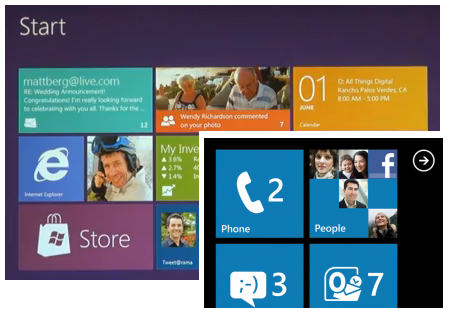
Windows 8 integrates new design concepts

Startscreen

Windows 8 shall became one of the most important changes that Microsoft done into its operating system for more than a decade since Windows 95…

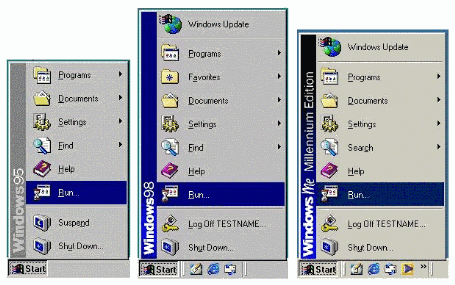
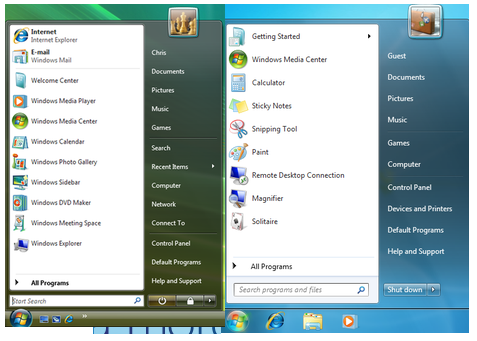
Let’s take a look first at the aging Start Menu from Windows 95 to Windows 7…

image

vista7startmenu

looks the same and feels older now - right?

A new Beginning Design UI for Windows 8

Seeing the new version having a new platform that supports ARM and several technologies at CES 2011, we've been excited for the upcoming Windows 8 for a long long time, downloading those fake leaks, and thankfully, Windows 8 was shown to the public for the first time with new UI that looks like Windows Phone and was designed to be really fast and fluid for Windows Tablets and PCs.

Platform support for new design

News designs by Intel, ARM Snapdragon processor, AMD, Texas Instruments Omap and Nvidia.

User Interface Features

Start Screen Tiles

tiles

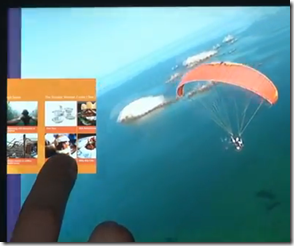
Swipe Apps feature

swipeapps 

- Sliding from left to right

Snap to dock feature

snapsnapintoplace

you can drag to resize the width

dragtochangesizes  

HTML 5 and Javascript Programming

The new platform is based on new web technologies so, it will maximize the touch features using HTML 5 and Javascript that will allow million of developers to create a new kind of app with Windows 8 – really cool… right?

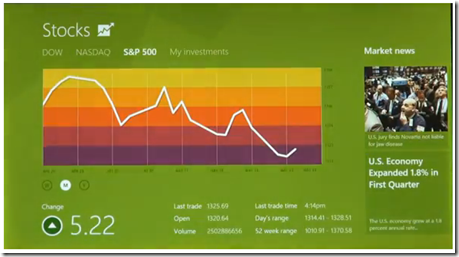
stocksmore

Apps are fullscreen and beautiful designed for touch technologies…

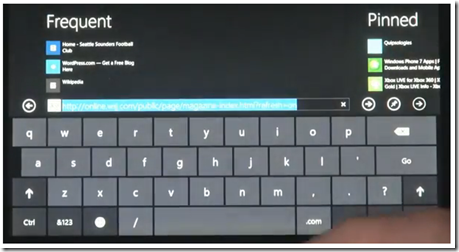
Internet Explorer 10 – Touch First UI and Switching Tabs

ie10more

Touch Keyboard

touchkeyboards

with thumbs layout for easy typing

thumbslayout

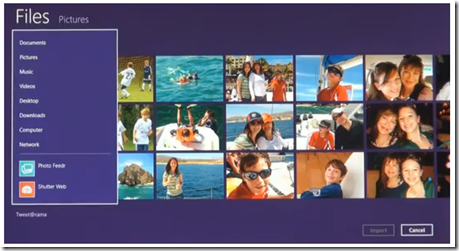
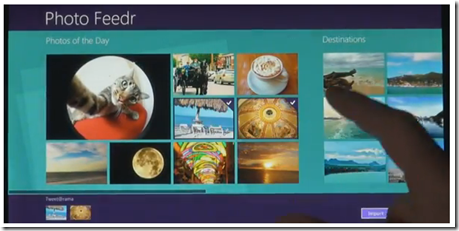
Windows 8 Apps

apps

photofdr

Anyway, you can always go back to the good old look of windows afterwards…

Let’s also wait for the “business and techie” features in the coming weeks.

Can’t wait!!!

Thanks for reading the quick view of “a more and beautiful” Windows 8…


Read more...

Unlock For Us

Save Energy by Adding “Turn Off Monitor/LCD” to Folders and Orb Ball in Windows 7 and Vista

Are you the type of person who always do-the-right thing? Monitor corresponds to 42-43% usage in power consumption everyday. If you have plenty of computers in your house, this tip will save you a lot of electricity bills from your pocket.

image_thumb_3[1]

Laptops and bulky CRT monitors are one of the useful application of this tip. When you buy laptops, there are only few manufacturers that adds turn off monitor key from your keyboard, you can only lessen the brightness level but you can’t totally turn it off instantly..

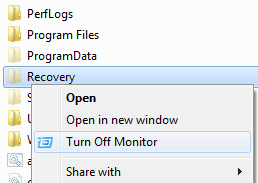
Windows 7 Folders and Desktop - Adding them to all folders is really useful

folders

Right Click any Folder name that you want, and click “Turn off Monitor” using the LEFT SIDE BUTTON of your Mouse. wow!!!

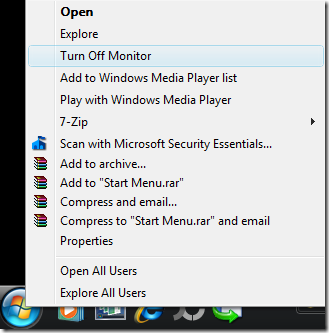
For Windows Vista – adding the option to Orb Ball (Start Menu) is available

vistacontextmenu

Right Click the Orb Ball, and click “Turn off Monitor” using the Left side Button of your Mouse.

Quick and Easy!

How to add the “Turn Off Monitor” option using Windows 7 and Vista

Download the software Winbubble, extract the zip file and install the tool. Once the tool is already been installed, launch the tool until it finishes setting up some bitmap conversions from Windows 7 Wallpapers.

Once, it has been open, go to the Tools Tab and click the Folder/Start Menu option and use the settings below.

 contextmenuentry7

Name: Any name that you want

Command: "C:\Program Files\WinBubble\WinBubble 2\Tools\htool.exe" /m

Tip: you can try if the tool works by pressing Win+R and by copying the path above and press enter.. If the Monitor turns Off, great!!!

Available only in Windows 7

Icon: just use the browse […] button to select any icon that is available from windows

shell32

Desktop Icon

c:\windows\system32\shell32.dll,34

startmenuicon Start Menu Icon

c:\windows\system32\shell32.dll,39

runicon Run Icon

c:\windows\system32\shell32.dll,24

Afterwards, Click the Add Button. That’s it!

Try also adding the option to your desktop…

desktopturnoffmonitor

Cool right? Enjoy!!!


Read more...

Unlock For Us

Command-line Utilities to check the Network Connectivity

Microsoft Windows 7 and Vista includes several diagnostic tools to monitor and repair network connections. Here are some of the most commonly used tools…

PING is one of the most useful IP-level utilities because it tests and verifies the connectivity to other computer. It replies with reports on the general speed (response time) of the network connection.

To use PING, click the Orb Ball (Start), search by typing “cmd” and then press Enter.

In the command interpreter window, type ping <ip address> or ping <domain name> e.g. ping 192.168.0.3 or ping yahoo.com


IPCONFIG - If you get a request timeout response to a ping command, usually, this means that there's a problem with the connectivity or configuration of the computer's networking information.

To check whether the settings is correct - use ipconfig/all command to view the configuration information.


TRACERT - This utility determines the path to an internet address, which is measured in hops. This is useful in
finding the reason why you can't connect to another network or website(s) on the internet.

To use Tracert, type tracert <ip address> or tracert <domain name> in a command interpreter window e.g. tracert yahoo.com

Please navigate the site for more tips and informations…

Thank you for reading the article!!!


Read more...

Unlock For Us

Using Regdevelop to create Windows Update Registry Program

This tip will save you a lot of time removing some annoyances to your computer problems

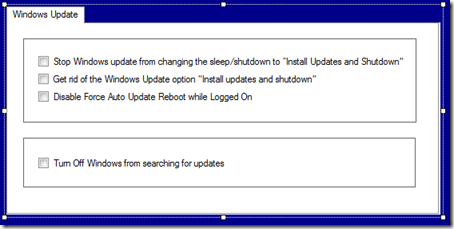
windowsupdatecheckboxoptions

One day, your computer automatically updates your windows installation, taking some few control out of it is good in our daily maintenance of our computer e.g. Turning off Autorun feature in Windows 7 and Windows update registry hacks.

Instead of going to the process again and again for maintenance and using the registry editor, just create a simple software for that.

If you have some experiences editing your windows registry, using Regdevelop is quite easy.

Drag the CheckBox control to the form and start configuring the program

checkbox

Caption

Stop Windows update from changing the sleep/shutdown to “Install Updates and Shutdown"

RegKeyPath1

HKEY_CURRENT_USER\Software\Policies\Microsoft\Windows\WindowsUpdate\AU

Value_Name1

NoAUAsDefaultShutdownOption

ValueData1

1

ValueType1

DWORD

In the UNCHEKED function of CheckBox Control simply changing the option to false will automatically set the ValueData2 to 0

uncheckedfalse

After that, you can proceed with other checkbox options like getting rid of Windows update option

No Auto Reboot While Users are Logged On and Turning Off Windows from searching for Updates

Read here for the configuration details

Also, There’s an “Automatic installation of certain updates that neither interrupt Windows services nor restart Windows” feature in windows using AutoInstallMinorUpdates value

windowsupdatecheckboxoptions2

For creativity, Adding a picturebox control creates a border for good User Interface.


Thanks for reading the article!


Read more...


© Unlock For Us @2026-2027| Blogger| License Agreement| Author| Contact Us