Enroll Now at NagaUniversity.Net!!! (UN ONLINE)

Unlock For Us

Unlock This! Who's watching you?

Today, the complexity of Computer Technology has gotten so far that virtually you can now go anywhere around the world.

But how about your privacy? Whenever you visit a website, you leave an 'ID' that reveals where you came from, what kind of computer you have, OS and many more.

How about your company?

A connection to the Internet means that you are connected in the network which is provided by your internet service provider (ISP). A packet sniffer that is located at your ISP would be able to look all of your online activities like web sites you visited, even where you sent the e-mail and its content. Everything, if they really want it.

What if your a genius? You have the potential for creating new products and you are living in a place provided by your company. They can sniff all the things that you do and STEAL your ideas.

They can also put a desktop monitoring software that acts like a trojan virus. What can you do about it? Plug it out...

Please share your ideas...

Related Article

Check this out, a tutorial on how to view programs inside your computer that are connected to any port outside the world.

 Unlock This! I see you...view your connections


Read more...

Unlock This! I see you...view your connections

What current Internet connections and listening ports has open and operating in your computer? What if a program was installed to sneak up on you and sends information remotely like a Trojan Virus.

You can see what ports are open and which programs are using these ports. In this blog, I will give two ways on how to view your Internet connections and listening ports that are currently open.

NETSTAT

Netstat according to Microsoft, It displays protocol statistics and current TCP/IP network connections.

How to use Netstat to view your connections:

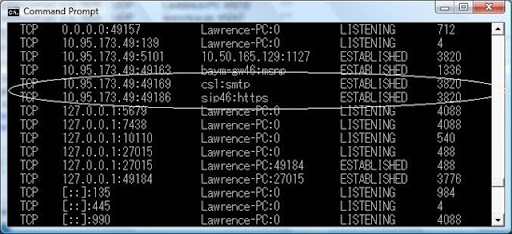
Open the command prompt, type: netstat -ao
netstat 
In the 2nd Column, you will see my  ip-address connected to a remote host 'sip46' and 'cs1' using Process Identitifer (PID) 3820.
Next, open the Task manager (Ctrl-Shift-Esc). Add the PID column by clicking
netstat2


View Menu--> Select Column

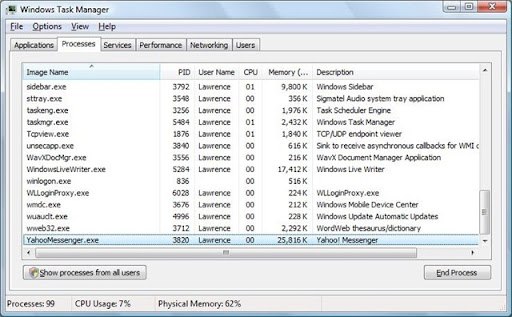
Now you can find the application using the PID 3820


Gotcha! It is a port used by yahoo messenger.
netstat4  
TCPVIEW

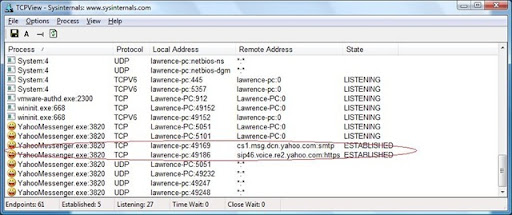
The more convenient way is by using TCPVIEW program. To download, click here. It is a graphical representation of netstat, a free utility by Sysinternals (has been acquired by Microsoft) which not only lists the IP addresses communicating with your computer, it tells you what program is using that connection. So you can use this in finding a trojan virus.

tcpviewYM


Read more...

Quote of the Week: "Men achieve a certain greatness unawares, when working to another aim" --Ralph Waldo Emerson

Aspirations brings us to the world of dreams. Where certainty is not true. Dreams may come and go but grabbing it depends on you.

While achieving something BIG a separate path of greatness may open go in front of you. It depends on us if it will be manage so true.

So LET's explore everything in our path and don't pass anything without looking. Just for a while, just for a little time...


Read more...

Unlock For Us

Unlock This! A guide for Partitioning a hardisk without destroying your data files

Partitioning a single hard drive into two or more partitions is very common now.  The use of multiple partitions allows computer users to quickly recover from trojans, rootkits, spyware, viruses, and damaged/corrupt operating systems. Also, for advance users it allows them to have a multiple operating systems. But the truth is many of us partitioned a hardisk because they want their files separate from operating system data. It is very convenient to store and arrange files in separate drives.

How to Partition a hardisk

During the Windows 95 and 98 era, the most accessible program that you can use is Fdisk. Before a hard disk can be used by an operating system on a PC, it must be divided into one or more logical disks called partitions. But the problem in this tool is that if you want a two logical partition in an existing one, you have to delete it first and create two logical partitions. Therefore, destroying your data.There are third party tools that you can used without damaging your data but the problem, it is not free.

This third-party partition management programs such as Acronis True Image, Norton PartitionMagic and Norton Ghost can easily create and resize partitions without destroying an existing data. I have used them for years. So far, no problems.

Recently, when Windows Vista was released. Windows Vista includes built-in Disk Management program which allows for the creation, deletion and movement of partitions. I have used them several times especially Shrink Volume function, for easily creating a partition. The best thing for that it is FREE.

Here's 'Unlock Me!' tutorial on how to use Shrink function.

http://unlockforus.blogspot.com/2007/10/unlock-me-partitioning-your-drive-in.html

But what if you are using Windows XP? You want to make a partition so that you can install Windows Vista or other OS? Or Maybe you just want to have a separate drive for your files.

Just use GParted, Click Here for the direct download link. If the link is not available go to the main site, http://gparted.sourceforge.net/download.php and download the LiveCD iso file.

GParted is an Open source software in creating, resizing, moving and copying partitions. I have use this 3 times already but so far no problems in creating a partition. Except, when I use this on my old laptop (Celeron 1Ghz) it hang during the creation of partition after resize. So, I recommend using Windows XP Computer Management tool if your laptop is old. I tried it to a new laptop, it has no problem.

Here's 'Unlock Me!' tutorial on how to use GParted LiveCD.

http://unlockforus.blogspot.com/2007/10/unlock-me-partitioning-your-drive-in_02.html

Enjoy!


Read more...
Unlock Me! Partitioning your Drive in Windows XP/Vista without destroying/losing your files

This tutorial was requested by Hubert from the Philippines.

1. First, Download Gparted LiveCD, here

2. Burn the ISO file using Roxio or Nero, or the other free burning tools like CDburnerXP Pro.

3. Reboot your computer and start it using the Gparted LiveCD. Before you do it, you must set the boot sequence first in your BIOS options. 
gparted1_thumb[1]
4. During the load, Select auto-configuration->Press Enter to load keymap->Enter for US.

5. Right Click the drive to be partitioned and Select 'Resize/Move'.

6. Next Click and move the Slider (GREEN colored box) to resize.

A picture from http://gparted.sourceforge.net/screenshots.php

7. After that Click 'Resize/Move' button and then the Apply Button. Viola!

8. Format and Create a partition
NEXT: Choose between Method 1 or 2

Method 1 
Using Gparted:

a. Mark the 'Unallocated Space' and click the NEW icon-> use as primary disk.

b. Right Click -> format -> NTFS.

c. Click the Apply button.

That's all!

Method 2
After that reboot and remove the LiveCD.
Windows XP/Vista will detect something wrong, it will reconfigure and have a disk check.

Go to Control Panel\Administrative Tools. Select Computer Management. Select the Unallocated Space-> Right Click choose 'New Partition'.

Just select the default options: (Next Button)

Enjoy!


Read more...

Unlock Me! Partitioning your Drive in Windows Vista using the Disk Management utility

A UnlockforUs Fan (Anonymous) ask me how to partition his hardrive because it has only one partition. It is running in Windows Vista. This is for you...

First, you must logged into an Administrator Account. You can only use this utility if it is NTFS format or unformatted RAW. I recommend that you should use this in a hardisk with no bad sectors and of course if there is enough space that 'can be freed' or shrink because some of the files that are use by the OS like page file or shadow copy storage area cannot be relocated.

Go to Control Panel\System and Maintenance\Administrative Tools. Select Computer Management then Disk Management. Select the Drive, example Drive C.

Shrink Volume_thumb[7]

Right Click and choose Shrink Volume. Windows vista will calculate first and give the maximum space that can be freed. You can manually enter the amount of space by changing the "Enter the amount of space to shrink in MB" values. So it must be 20000Mb, if you want to have 20Gbytes of shrink space (almost, but not exact).

amount2shrink_thumb[1]

In this example it is only 519Mbytes is to be Shrink. Click the "Shrink" button to use the maximum allowable amount of space.

newsimplevolume_thumb

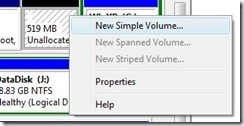
After that you will see the "unallocated space". Right Click-> Choose 'New Simple Volume'. The New simple volume wizard will open and click 'Next' to continue. Choose the default options, simply by clicking 'NEXT' button on other window like when assigning the drive letter and formatting the volume.

Now, you have successfully created a hardisk partition.

Enjoy!

FEATURED ARTICLES:

Windows Vista Unlocks, Guides, Tutorials, News, Tips and Tweaks

Unlock Me! Disabling USB drives/Storage in Windows Vista / XP 

UnlockThis! Quicktip: How to prolong your Laptop Battery

iUnlockThis! YouTube Hack: Download YouTube .flv Videos

Windows Vista Benchmarking tool

Branding your Windows Vista Computer

Turn Off Aero using a Keyboard Shortcut

Windows Vista Tip, Create an Aero On Off and Flip3D Shortcut

Gear up your new Windows Vista OS with tweaks for beginners

Speed Up! Use "Quick Explorer" to navigate your files easily


Read more...

Unlock For Us

Unlock ME! "Hidden Windows XP Serial Key"

Last month, a friend of mine ask me.
"Why is it that when I re-installed Windows XP on my laptop, it did not ask for a license key? Where can I find it?"

A day before, I am trying to pre-configure my Windows installation disc. I noticed that there is a file located in the disc that has the Product key. It contains information about how to automate the installation or upgrade so the setup runs without requiring user input.

Where is it?
Open windows explorer and go to the [discdrive]\I386 folder, browse for "Winnt.sif" file and drag it to notepad...

Enjoy!


WinGuggle, Recover your Windows and Office Product Key easily


Read more...


© Unlock For Us @2024| Blogger| License Agreement