Unlock For Us

Profiler: Get the most important System Information about your computer in one location

 SystemSummary

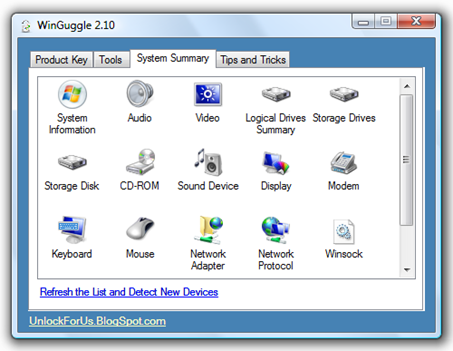
The new version of WinGuggle (version 2.1) aims to provide the most useful System Information in one location. The new tool gathers key information such Basic System Summary, Audio and Video Codecs, Display Drivers, Storage Disks and Drives, Network, Display adapter and many more.

The new feature is recommended for checking the specifications of your computer and for those people that wants to upgrade their laptop to a newer version of Operating system such as Windows 7 or Vista. Run or refresh the System Summary feature in a separate disk like removable storage or flash drives and it will automatically save that information for reference purposes incase you encounter a problem on audio and video drivers and hardware information that you need.

System Information

The tool gathers information for the following items:

  • The OS name and version

  • Computer Name

  • Original Equipment Manufacture System Information (manufacturer, model, and type)

  • Processor, BIOS Version/Date and SMBIOS Version

  • Windows and System Directory

  • Boot Device

  • Locale

  • Hardware Abstraction Layer or OS version

  • User name

  • Time Zone

  • The amount of memory and system resources

  • Page File Path

Storage Drives and Disk

This is one of the most useful information that the tool gathers. It provides you with the detailed information about your Hard Drives.

Audio and Video Drivers

The tool lists video card, monitor information, name and manufacturer of sound device(s), audio and video drivers information and version. Great tool if you want to upgrade or install a new operating system.

Network Adapter and Protocol

Lists network adapter information such as Network protocol information in greater details related to how it operates on the network.

and many more….

The future versions of the software (now in development stage) will have the ability to import and export data and provides more detailed information about your system.

Enjoy!


Read more...

Unlock For Us

Dxdiag Command Line options

dxdiag The DirectX Diagnostic Tool is one of the most useful utilities in Windows that was designed to fix DirectX-related (video) or sound related hardware problems.

The great thing about the tool, It provides a quick and easy access to most of the important information such as video and audio drivers that you need before you upgrade or reinstall your OS.

Creating a backup of those information is very useful especially on old laptops.

Using the Command Line Switches

Usage: dxdiag [/x outfile] [/t outfile] [/whql:off] [/whql:on]

/x outfile – save XML information to the outfile and quit

/t outfile – save txt information to the outfile and quit

/whql:[on/off] – allow or do not allow dxdiag to check for WQHL digital signature

example

dxdiag /t dxdiag_backup.txt

Sample Output

------------------
System Information
------------------
Time of this report: 2/18/2010, 20:23:42
       Machine name: TOX-PC
   Operating System: Windows Vista™ Ultimate (6.0, Build 6002) Service Pack 2 (6002.vistasp2_gdr.091208-0542)
           Language: English (Regional Setting: English)
System Manufacturer: Dell Inc.
       System Model: Latitude D630                  
               BIOS: Phoenix ROM BIOS PLUS Version 1.10 A02
          Processor: Intel(R) Core(TM)2 Duo CPU     T7100  @ 1.80GHz (2 CPUs), ~1.8GHz
             Memory: 3062MB RAM
          Page File: 1809MB used, 4533MB available
        Windows Dir: C:\Windows
    DirectX Version: DirectX 11
DX Setup Parameters: Not found
     DxDiag Version: 7.00.6002.18107 32bit Unicode

------------
DxDiag Notes
------------
      Display Tab 1: No problems found.
        Sound Tab 1: No problems found.
          Input Tab: No problems found.

--------------------
DirectX Debug Levels
--------------------
Direct3D:    0/4 (retail)
DirectDraw:  0/4 (retail)
DirectInput: 0/5 (retail)
DirectMusic: 0/5 (retail)
DirectPlay:  0/9 (retail)
DirectSound: 0/5 (retail)
DirectShow:  0/6 (retail)

---------------
Display Devices
---------------
        Card name: Mobile Intel(R) 965 Express Chipset Family
     Manufacturer: Intel Corporation
        Chip type: Mobile Intel(R) 965 Express Chipset Family
         DAC type: Internal
       Device Key: Enum\PCI\VEN_8086&DEV_2A02&SUBSYS_01F91028&REV_0C
   Display Memory: 358 MB
Dedicated Memory: 0 MB
    Shared Memory: 358 MB
     Current Mode: 1280 x 800 (32 bit) (60Hz)
          Monitor: Generic PnP Monitor
      Driver Name: igdumd32.dll
   Driver Version: 7.14.0010.1253 (English)
      DDI Version: 9Ex
   BGRA Supported: Yes
Driver Attributes: Final Retail
Driver Date/Size: 4/14/2007 08:28:18, 2363392 bytes
      WHQL Logo'd: Yes
  WHQL Date Stamp:
Device Identifier: {D7B78E66-6942-11CF-7D77-F321ADC2CA35}
        Vendor ID: 0x8086
        Device ID: 0x2A02

Hope this helps!


Read more...

Unlock For Us

Using Event Viewer in Windows 7 and Vista

eventviewer Event Viewer is a built-in application in Microsoft's Windows operating systems that enables administrators and users to browse and manage event logs on a local or remote machine. It is an advanced tool that displays detailed information about significant events and helpful when troubleshooting errors with Windows and other programs.

Even logs are traces or logged events that corresponds to a record of an occurrence of a program or operating system. Using the Event Viewer, you can search for any events that indicate problems and use such logs to monitor overall system health of your computer.

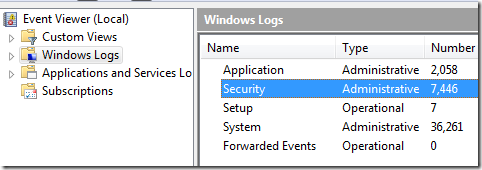
Windows Logs include:

Application (program) events - Events are classified as Warning, Error, and Information Event depending on the severity of the event. An Error event is significant information such as loss of data. A warning is an event that is not necessarily significant, but might indicate a possible future problem. An Information Event describes the successful operation of a program, driver, or service.

Security-related events - These events are called audits and are described as successful or failed depending on the event such as whether a user trying to log on to Windows was successful or not.

Setup events - Computers that are configured as domain controllers will have additional logs displayed here.

System events - System events are logged by Windows and Windows system services. It is classified as error, warning, or information.

Forwarded events - These events are forwarded to this log by other computers inside the network.

In Event Viewer, Applications and Services Logs vary.

appplicationandservicelogs 

It includes separate logs about the programs that runs and more detailed logs that pertain to specific Windows services.


How to Open the Event Viewer in Windows 7 and Vista

startsearch

Type the “Event Viewer” in the Start Search Box

winbubble

Or Open the program using WinBubbles located at Windows Utility Tab


Monitoring Event Logs on Your Computer

Change the settings first on the Local Security Policy (secpol.msc)depending on the policy that you want to monitor.

logonaudits

In the Event viewer, Click the Windows Logs

monitorchanges

monitor

Read here for the complete details: Monitoring attempts to change settings in Windows Vista

For more detailed and advance features:

http://WindowsForUs.com?eventmanagement.aspx

Enjoy!


Read more...

Unlock For Us

Command Line Switches for msconfig.exe (System Configuration Utility) and Tools Tab Customization

systemconfiguration MSConfig is a utility to edit configuration files and startup programs. You can also use of the tool to optimized your computer performance depending on your needs.


Command Line options for the tool

msconfig –[number]

msconfig Switches Tab
1 General
2 Boot
3 Services
4 Startup
5 Tools

Adding more Utilities to the Tool Tab

According to Microsoft (http://WindowsForUs.com?906569), by creating an xml file Mscfgtlc.xml, you can customize the tools Tab of the Utility.

<?xml version="1.0" ?>
<MSCONFIGTOOLS>
<a NAME="Internet Protocol Configuration" PATH="%windir%\system32\cmd.exe"
DEFAULT_OPT="/k %windir%\system32\ipconfig.exe" ADV_OPT="/k %windir%\system32\ipconfig.exe /all" HELP="IPCONFIG ipconfig.exe is a console application that displays all current TCP/IP network configuration values."/>
</MSCONFIGTOOLS>

Hope this helps!


Read more...

Customized Short and Long URL or Web Site Addresses

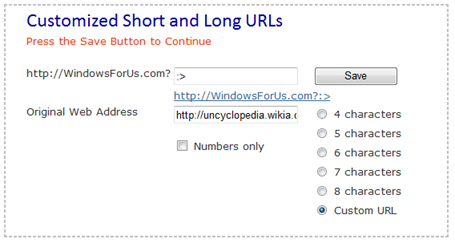
colongreaterthan

This is the year that I’m going to expand and make hybrid applications that merges both web and windows apps. The year of Tweaking each famous Web applications.

How URL Shortening Works?

URL shortening is a process of making long web addresses easily recognizable. Bloggers can use this to redirect or forward to another page and regular users can use these for pasting urls on social networking sites .

From this long web URL

http://unlockforus.blogspot.com/2008/07/youtube-file-hack-download-and-save.html

into http://WindowsForUs.com?ca46

or short ones!

http://friendster.com or http://facebook.com/profile/yourname  into http://windowsforus.com?:P

GREAT!

As far as I know, this is the only website that offers a customization of Long and Short URLs into different length of characters (and many more features soon).

Try Now!!!! http://WindowsForUs.com/Url/

Again, Ideas will always be apart of innovation.

Enjoy!


Read more...

Unlock For Us

Using NSLOOKUP command to get IP and DNS Information


dos3 Name Server Lookup or nslookup displays DNS information to test and troubleshoot DNS servers including IP address of a particular machine running in TCP/IP protocol.


Non-Interactive mode

C:\Windows\system32>nslookup /?
Usage:
   nslookup [-opt ...]         # interactive mode using default server
   nslookup [-opt ...] - server   # interactive mode using 'server'
   nslookup [-opt ...] host       # look up 'host' using default server
   nslookup [-opt ...] host server # look up 'host' using 'server'

common usage: nslookup [-option] [hostname] [server]

This is being use if you want for a single piece of information e.g. performing a reverse lookup on an IP address.

C:\Windows\system32>nslookup 72.14.203.121
Default Server:  sn3.dli.bit.net
Address:  201.4.2.9

Name:    tx-in-f121.1e100.net
Address:  72.14.203.121

C:\Windows\system32>nslookup unlockforus.blogspot.com

Default Server:  sn3.dli.bit.net
Address:  201.4.2.9

Non-authoritative answer:
Name:    blogspot.l.google.com
Address:  64.233.189.191
Aliases:  unlockforus.blogspot.com

C:\Windows\system32>nslookup you.wikidot.com

Default Server:  sn3.dli.bit.net
Address:  201.4.2.9

Non-authoritative answer:
Name:    www1.s.wikidot.com
Address:  74.86.234.149
Aliases:  you.wikidot.com


USING THE COMMAND TO TEST AND TROUBLSHOOT DNS SERVERS

Note: Before using this tool in interactive mode, you should be familiar with how DNS works.

Interactive mode

Simply type “nsloolup” and “?” to display all the available commands.

C:\Windows\system32>nslookup
Default Server:  sn3.dli.bit.net
Address:  201.4.2.9

> ?
Commands:   (identifiers are shown in uppercase, [] means optional)
NAME            - print info about the host/domain NAME using default server
NAME1 NAME2     - as above, but use NAME2 as server
help or ?       - print info on common commands

set OPTION      - set an option
    all                 - print options, current server and host
    [no]debug           - print debugging information
    [no]d2              - print exhaustive debugging information
    [no]defname         - append domain name to each query
    [no]recurse         - ask for recursive answer to query
    [no]search          - use domain search list
    [no]vc              - always use a virtual circuit
    domain=NAME         - set default domain name to NAME
    srchlist=N1[/N2/.../N6] - set domain to N1 and search list to N1,N2, etc.
    root=NAME           - set root server to NAME
    retry=X             - set number of retries to X
    timeout=X           - set initial time-out interval to X seconds
    type=X              - set query type (ex. A, AAAA, A+AAAA, ANY, CNAME, MX, NS, PTR, SOA, SRV)
    querytype=X         - same as type
    class=X             - set query class (ex. IN (Internet), ANY)
    [no]msxfr           - use MS fast zone transfer
    ixfrver=X      - current version to use in IXFR transfer request
server NAME     - set default server to NAME,                       using current default server
lserver NAME    - set default server to NAME, using initial server
finger [USER]   - finger the optional NAME at the current default host
root            - set current default server to the root
ls [opt] DOMAIN [> FILE] - list addresses in DOMAIN (optional: output to FILE)
    -a          -  list canonical names and aliases
    -d          -  list all records
    -t TYPE     -  list records of the given RFC record type (ex. A,CNAME,MX,NS,
PTR etc.)
view FILE           - sort an 'ls' output file and view it with pg
exit            - exit the program

You can read for more information about the tool: HERE


Error Messages from Microsoft Windows XP Article

Descriptions

Timed out
The server did not respond to a request after a certain amount of time and retries. You can set the time-out period with the set timeout subcommand retries with the set retry sub command.

No response from server
No DNS name server is running on the server computer.

No records
The DNS name server doesn’t have resource records of the current query type for the computer, although the computer name is valid. The query type is specified with the set querytype command.

Nonexistent domain
The DNS domain name doesn’t exist.

Connection refused or Network is unreachable
The connection to the DNSname server or fingerserver could not be made. This error commonly occurs with ls and finger requests.

Server failure
The DNS nameserver found an internal inconsistency in its database and could not return a valid answer.

Refused
The DNS server refused to service the request.

Format error
The DNSname server found that the request packet was not in the proper format. It may indicate anerror in nslookup.

Source

Have Fun Learning!


Read more...

Unlock For Us

Using GetMAC Tool to display MAC address for Network Adapters

dos3 Media Access Control (MAC) address is the computer’s physical address inside the network. This tool will help you to configure your router(s) to allow only specific computers to access the network or internet. Thanks to William for asking this question last December 16, 2009.

If your computer has more than one network adapter, the MAC address of each adapter is listed separately.

Using the tool to display the network adapters mac address

D:\>getmac

Physical Address    Transport Name
=================================================
00-19-8B-DB-69-1D   \Device\Tcpip_{793CAA85-159E-4EC7-9986-FD793610261B}
00-1B-76-2D-B1-DE   Media disconnected

D:\>

Other Parameters of the tool

D:\>getmac /?

GETMAC [/S system [/U username [/P [password]]]] [/FO format] [/NH] [/V]

Description:
    This tool enables an administrator to display the MAC address
    for network adapters on a system.

Parameter List:
    /S     system        Specifies the remote system to connect to.

    /U     [domain\]user  Specifies the user context under
                             which the command should execute.

    /P     [password]   Specifies the password for the given
                             user context. Prompts for input if omitted.

    /FO    format        Specifies the format in which the output
                             is to be displayed.
                             Valid values: "TABLE", "LIST", "CSV".

    /NH                      Specifies that the "Column Header" should
                               not be displayed in the output.
                               Valid only for TABLE and CSV formats.

    /V                       Specifies that verbose output is displayed.

    /?                       Displays this help message.

Examples:
    GETMAC /?
    GETMAC /FO csv
    GETMAC /S system /NH /V
    GETMAC /S system /U user
    GETMAC /S system /U domain\user /P password /FO list /V
    GETMAC /S system /U domain\user /P password /FO table /NH

D:\>

Anyhow, if your a windows fan and you don’t like the name, you can still use another network tool called ipconfig to get the network adapters physical address (alternative name to mac address)

C:\>ipconfig /all

Ethernet adapter Local Area Connection:

   Connection-specific DNS Suffix  . :
   Description . . . . . .  : Broadcom NetXtreme 57xx Gigabit Controller
   Physical Address. . . . . . . . . : 00-19-8B-DB-69-1D
   DHCP Enabled. . . . . . . . . . . : Yes
   Autoconfiguration Enabled .  . : Yes


Hope this helps!


Read more...


© Unlock For Us @2024| Blogger| License Agreement