Unlock For Us

Save Energy by Adding “Turn Off Monitor/LCD” to Folders and Orb Ball in Windows 7 and Vista

Are you the type of person who always do-the-right thing? Monitor corresponds to 42-43% usage in power consumption everyday. If you have plenty of computers in your house, this tip will save you a lot of electricity bills from your pocket.

image_thumb_3[1]

Laptops and bulky CRT monitors are one of the useful application of this tip. When you buy laptops, there are only few manufacturers that adds turn off monitor key from your keyboard, you can only lessen the brightness level but you can’t totally turn it off instantly..

Windows 7 Folders and Desktop - Adding them to all folders is really useful
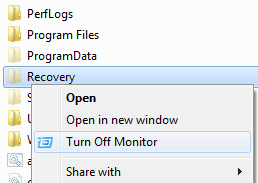
folders

Right Click any Folder name that you want, and click “Turn off Monitor” using the LEFT SIDE BUTTON of your Mouse. wow!!!

For Windows Vista – adding the option to Orb Ball (Start Menu) is available
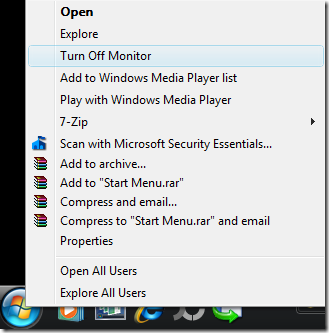
vistacontextmenu

Right Click the Orb Ball, and click “Turn off Monitor” using the Left side Button of your Mouse.

Quick and Easy!

How to add the “Turn Off Monitor” option using Windows 7 and Vista

Download the software Winbubble, extract the zip file and install the tool. Once the tool is already been installed, launch the tool until it finishes setting up some bitmap conversions from Windows 7 Wallpapers.

Once, it has been open, go to the Tools Tab and click the Folder/Start Menu option and use the settings below.

 contextmenuentry7

Name: Any name that you want

Command: "C:\Program Files\WinBubble\WinBubble 2\Tools\htool.exe" /m

Tip: you can try if the tool works by pressing Win+R and by copying the path above and press enter.. If the Monitor turns Off, great!!!

Available only in Windows 7

Icon: just use the browse […] button to select any icon that is available from windows

shell32

Desktop Icon

c:\windows\system32\shell32.dll,34

startmenuicon Start Menu Icon

c:\windows\system32\shell32.dll,39

runicon Run Icon

c:\windows\system32\shell32.dll,24

Afterwards, Click the Add Button. That’s it!

Try also adding the option to your desktop…

desktopturnoffmonitor

Cool right? Enjoy!!!


Read more...

Unlock For Us

Command-line Utilities to check the Network Connectivity

Microsoft Windows 7 and Vista includes several diagnostic tools to monitor and repair network connections. Here are some of the most commonly used tools…

PING is one of the most useful IP-level utilities because it tests and verifies the connectivity to other computer. It replies with reports on the general speed (response time) of the network connection.

To use PING, click the Orb Ball (Start), search by typing “cmd” and then press Enter.

In the command interpreter window, type ping <ip address> or ping <domain name> e.g. ping 192.168.0.3 or ping yahoo.com


IPCONFIG - If you get a request timeout response to a ping command, usually, this means that there's a problem with the connectivity or configuration of the computer's networking information.

To check whether the settings is correct - use ipconfig/all command to view the configuration information.


TRACERT - This utility determines the path to an internet address, which is measured in hops. This is useful in
finding the reason why you can't connect to another network or website(s) on the internet.

To use Tracert, type tracert <ip address> or tracert <domain name> in a command interpreter window e.g. tracert yahoo.com

Please navigate the site for more tips and informations…

Thank you for reading the article!!!


Read more...

Unlock For Us

Using Regdevelop to create Windows Update Registry Program

This tip will save you a lot of time removing some annoyances to your computer problems

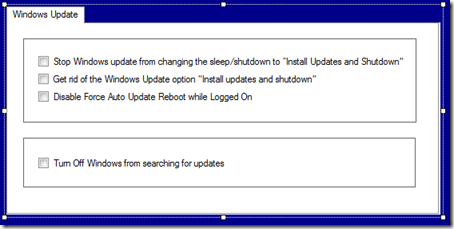
windowsupdatecheckboxoptions

One day, your computer automatically updates your windows installation, taking some few control out of it is good in our daily maintenance of our computer e.g. Turning off Autorun feature in Windows 7 and Windows update registry hacks.

Instead of going to the process again and again for maintenance and using the registry editor, just create a simple software for that.

If you have some experiences editing your windows registry, using Regdevelop is quite easy.

Drag the CheckBox control to the form and start configuring the program

checkbox

Caption

Stop Windows update from changing the sleep/shutdown to “Install Updates and Shutdown"

RegKeyPath1

HKEY_CURRENT_USER\Software\Policies\Microsoft\Windows\WindowsUpdate\AU

Value_Name1

NoAUAsDefaultShutdownOption

ValueData1

1

ValueType1

DWORD

In the UNCHEKED function of CheckBox Control simply changing the option to false will automatically set the ValueData2 to 0

uncheckedfalse

After that, you can proceed with other checkbox options like getting rid of Windows update option

No Auto Reboot While Users are Logged On and Turning Off Windows from searching for Updates

Read here for the configuration details

Also, There’s an Automatic installation of certain updates that neither interrupt Windows services nor restart Windowsfeature in windows using AutoInstallMinorUpdates value

windowsupdatecheckboxoptions2

For creativity, Adding a picturebox control creates a border for good User Interface.


Thanks for reading the article!


Read more...

Unlock For Us

Turning off Autorun feature in Windows 7

According to Wikipedia, Autoplay is a feature introduced in Windows XP which automatically checks and examines removable media and devices based on content such as pictures, music or video files once inserted.

The main purpose  of autorun is to have a software response to hardware actions that you start or plug on a computer. These features are typically called from removable media or from network shares. During Autoplay, the autorun.inf file from the media that is usual hidden is parsed.

Side effect

In versions of Windows that are earlier than Windows Vista and 7, when the media contains an Autorun command is inserted, the system automatically executes the program without requiring user consent.

For security reasons,  you can disable the feature using your windows registry.

Open your windows registry (win + r and type “regedit”)

HKEY_LOCAL_MACHINE\SOFTWARE\Microsoft\Windows\CurrentVersion\Policies\Explorer

If the Explorer folder doesn’t exists, you can create by using the Right-Click on Policies folder then New option and Key, then type the name “explorer”

Next create a value named “NoDriveTypeAutoRun”

nodrivetypeautorun

Double-Click to set the value according to the data below

NoDriveTypeAutorun

The registry value selectively disables specific Autorun features.

Value Meaning
0xFF hex or 255 decimal Disable Autorun on all kinds of drives
0x20 hex or 32 decimal Disable Autorun on CD-ROM drives
0x10 hex or 16 decimal Disable Autorun on network drives
0x8 hex or 8 decimal Disable Autorun on fixed drives
0x4 hex or 4 decimal Disable Autorun on removable drives
0x40 hex or 64 decimal Disable Autorun on RAM disks
0x1 / 0x80 hex (128 decimal) Disable Autorun on drives of unknown type

Useful tip from Microsoft: If you want to turn off Autorun for both removable drives (flash drives) and for network drives, you must add 0x4 and 0x10 (0x4 + 0x10) equals 0x14 (20 decimal).

NoDriveAutoRun registry value

You can set the values on specific drive connected to the system.

e.g. decimal 13 data value corresponds to 1101 in binary.

Reading from right to left, Drive letter A, C and D are the one to be affected.

Same bits configuration procedure for RegdevelopTM! what a small world…

Using Regdevelop to create your own AutoPlayOff software

If you already familiar with windows registry, using regdevelop to create application is very easy.

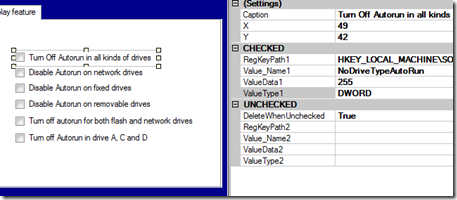
Drag the CheckBox control to the form and use the configurations below

checkbox

Caption

Turn Off Autorun in all kinds of drives

RegKeyPath1

HKEY_LOCAL_MACHINE\SOFTWARE\Microsoft\Windows\CurrentVersion\Policies\Explorer

ValueName1

NoDriveTypeAutoRun

ValueData1

255

ValueType1

DWORD

DeleteWhenUnchecked

True

You’ll noticed that it is similar or the same as creating your own registry entries as shown above.

regdevelopautoplayoff

Click the Start icon to test the application and afterwards, press the Build Now option to start using the application.

That’s it!


Read more...

Unlock For Us

How to Find Bing Background Location using Google

backgroundmaps

Ever wonder where in the world the background wallpaper for bing located?

This is really cool for those people travelling and seen the wallpaper interesting..

Using your Internet Explorer, Right-click any portion of bing wallpaper and click Save Background As…

rightclick

Usually, the filename is the name or location of the place.

filename

Just copy and try searching the location using bing first.

bingresult

If no results found, use Google..

googleresult

Cool right?!!!


Read more...

Unlock For Us

Using BCDEDIT to change and modify Windows Boot Entries

Booting is the so called “bootstrapping” that processes and starts the OS (operating system) when the user turns on the computer. A boot sequence is the initial group of operations that the computer operates.

bootloader

In Windows Server, 7 and Vista the bootloader file contains the necessary information is located in [root directory]\bootmgr. For Windows XP, the file is \ntldr.

Bcdedit is a powerful tool that Windows Vista, 7 and Server 2008 uses to manage the boot entry option value in the Windows boot configuration data store (BCD).

Easiest way to edit the boot loader entry names

Open your Command Interpreter > Win + R > and type “cmd.exe” > and use the following command

bcdedit /set {current} description "any name"

Restart your computer to see the results…

For Windows XP users, you can read this old blog article that I wrote.

Note: It is important to backup the bcd entries first:

bcdedit /export c:\savebcdentry

To undo the changes:

bcdedit /import c:\savebcdentry

How to delete entry from the list

Microsoft Windows [Version 6.0.6001]
Copyright (c) 2006 Microsoft Corporation.  All rights reserved.

C:\Windows\system32>bcdedit

Windows Boot Manager
--------------------
identifier              {bootmgr}
device                  partition=C:
description             Windows Boot Manager
locale                  en-US
inherit                 {globalsettings}
default                 {current}
resumeobject            {e6317784-92a2-11df-a5ba-ab1b23d1ff42}
displayorder            {current}
toolsdisplayorder       {memdiag}
timeout                 30

Windows Boot Loader
-------------------
identifier              {current}
device                  partition=C:
path                    \Windows\system32\winload.exe
description             Microsoft Windows Vista
locale                  en-US
inherit                 {bootloadersettings}
recoverysequence        {572bcd55-ffa7-11d9-aae0-0007e994107d}
recoveryenabled         Yes
osdevice                partition=C:
systemroot              \Windows
resumeobject            {e6317784-92a2-11df-a5ba-ab1b23d1ff42}
nx                      OptIn

Windows Boot Loader
-------------------
identifier              {a1d5593a-5b7-11e0-9e3c-d0a2d26a53be}
device                  partition=E:
path                    \Windows\system32\winload.exe
description             dummy OS
locale                  en-US
inherit                 {bootloadersettings}
recoverysequence        {572bcd55-ffa7-11d9-aae0-0007e994107d}
recoveryenabled         Yes
osdevice                partition=C:
systemroot              \Windows
resumeobject            {e6317784-92a2-11df-a5ba-ab1b23d1ff42}
nx                      OptIn

C:\Windows\system32>

First, you need to know the identifier value by launching “bcdedit” as shown above and after that, you can now delete the entry “dummy OS” by using the command:

bcdedit /delete {a1d3593a-5b7-11e0-9e3c-d0a2d26a53be}

For more detailed information from Microsoft, read here..

http://WindowsForUs.com?bcdeditms3

Thanks for reading the guide!


Read more...

Unlock For Us

How to Install IIS (Internet Information Services) in Windows Server

initialconfigtask

Windows Server is the leader in terms of operating system unit and revenues. According to Wikipedia, Internet Information Server is a Web Server application on the Internet created by Microsoft for use with Windows. It is the most used Web server after Apache HTTP Server.

It provides a reliable, manageable, and scalable Web application application infrastructure.

IIS is not turned on by default when Windows is installed.

How to activate the Internet Information Services

Once the Initial configuration Task Window is ready, go to the Add roles option.

addrole 

If not loaded, you can access this using the Server Manager window

servermanager

Select to check the “Web Server (IIS)” option and follow the Wizard instruction.

webserver

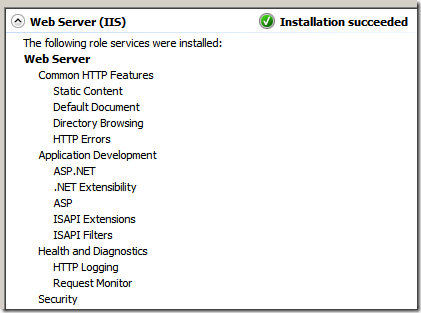
It’s really fast and easy!

finished

Once the Web Server Installation is finished and you want to add more features, go to the “Add Role Services”

editaddfeatures_services

and Select the Role Services that you want to add e.g. CGI

editaddfeatures

Click the Install option.

install

That’s it!


Read more...


© Unlock For Us @2024| Blogger| License Agreement