Unlock For Us

Quick Tip: Easily Play .Webm formats

Webm is an audio video format use in Youtube design to provide royalty free and open video compression design for HTML5. Youtube offers WebM videos in 480p and 720p format so, if you encountered some files with .webm extension, here’s a quick tip.

Simply drag and drop the file to your Google Chrome browser

googlechrome 

Easy?!

If your using http://windowsforus.com/youtube to browse and save videos at youtube, parsing those links many times, for sure, you’ll encoutered this type of video.


Read more...

Unlock For Us

How to Add “Register File” to your Right-Click Menu

Your old computer doesn’t work anymore, you re-installed the OS but  most of the setup to run your important programs is already gone so, you’ve just copied the files and when you run the software you get this message: “Component ‘----------‘ or one of its dependencies are not correctly registered: a file is missing or invalid

The only thing that you can do with this is to use your search engine for this files and after downloading them, move them to the folder location of the software or c:\windows\system32 and register the files needed one by one.

Adding “Register File” would be great!

registerfiles32

Using the universal script template that WinBubbles have, you’ll be able launch any application with UAC enabled. Same with its examples e.g. How to Add “Hide This File” or “Unhide this File” Context Menu and Hide my Computer to your Network Icon

Download the tool, go to its folder location and Copy “lawrence.vbs'”

creating3r

Rename the file to any e.g. regsvr32.vbs

regsvr32vbs

open the file with notepad and replace the string

For Each strArg in objArg

‘Replace the string here

Next

To this code (register files):

objApp.shellExecute "cmd.exe", " /c regsvr32 " & chr(34) & strArg & chr(34), , "runas", 1

Save the file, copy the Path, open WinBubble and go to Tools Menu


Click “Windows Explorer (All Files)” Button and add this values

Name    Any e.g. Register this File

Command   wscript "[Path]" "%1"    for example

wscript "C:\Program Files\WinBubble\WinBubble 2\Tools\regsvr32.vbs" “%1”

winbubblecontextmenus3

Click Add afterwards… and start registering DLLs and ActiveX Controls..

To Unregister file (you need to repeat all steps and use this code) Context Menu:

objApp.shellExecute "cmd.exe", " /c regsvr32 /u " & chr(34) & strArg & chr(34), , "runas", 1

That’s it!


Read more...

Unlock For Us

How to change Windows Library Icons

libraryicons

Changing all library icons is easy! All you need to do is to follow these steps to start changing the icons.

Guide

Make sure the all hidden files and folders are shown – Press Alt + t + o + View tab and click to choose the option “Show hidden files, folders, and drives”

libraryicons_showhidden

and go to the path

"C:\Users\[username]\AppData\Roaming\Microsoft\Windows\Libraries"

libraryicons_browse

Make sure that what you see is the same as the picture above

Now open the folders by dragging the folders to notepad or just use the Open with Notepad feature of Winbubbles located at the general tab.

libraryicons_openwithNotepad and click the Apply Button

libraryicons_openwithNotepad3

Its easy! Just right-click and use the feature to locate the XML data

<iconReference>imageres.dll,-1003</iconReference>

Simply change imageres.dll,-1003 to the path of the icon e.g. C:\Windows\System32\SensorsCpl.dll,14 or [filename] only

If it is difficult to find icons, it is recommended to use all the built-in icons that you can find in windows using winbubbles to prevent mistakes. just go to Icon Tab and click browse to launch the icon browser window.

libraryicons_icontab 

and use the right side portion to get the path and file by pressing down arrow ↓

libraryicons_rightside

Sample

Library Icon Original Icon Change to
Documents imageres.dll,-1002 C:\Windows\branding\shellbrd\shellbrd.dll,2
Music imageres.dll,-1004 C:\Windows\system32\NetworkMap.dll,7
Pictures imageres.dll,-1003 C:\Windows\System32\SensorsCpl.dll,14
Video imageres.dll,-1005 same

Results

libraryicons_results

Cool Right?! Enjoy!


Read more...

Unlock For Us

Adding Quick Navigation Explorer feature to your Taskbar

Some people are always in a hurry, easily annoyed, and always want all things as simple as possible e.g. navigating through folders and files.

Probably, that’s why Start Search was invented.

quickexplorer

Look at the picture above.

Here I’m going to show the feature that I called “Quick Navigation Explorer” where it is possible to browse your files and folders located at the right side portion of the taskbar.

How to the Add Quick Navigation Feature to your Taskbar

Right-Click any portion of the taskbar and choose “new toolbar…”

quickexplorer_newtoolbar

Choose any folder such as Computer, Libraries and Favorites, and click the Select Folder Button.

quickexplorer_adding


Easy and nice tip?! Thanks for reading the article!


Read more...

Unlock For Us

Quick tip: Launching the Hidden Command Prompt while installing Windows

During the installation of Windows, it is possible to launch the command prompt after entering the username and password.

_commandprompt2_wininstall_virtualpc

_commandprompt10_wininstall_virtualpc

Just press Shift + F10 and the command prompt will appear.

By this you can enable the hidden administrator (inactive) account and others, tweak anything while installing, and verify the settings through command prompt.

Cool right?!

Tested the installation using Virtual PC running 512mb, enabled virtualization and 2 Ghz Core2duo processor while using the classic theme of windows... Its fast.. Thanks for reading the article!


Read more...

Unlock For Us

Windows 8 integrates new design concepts

Startscreen

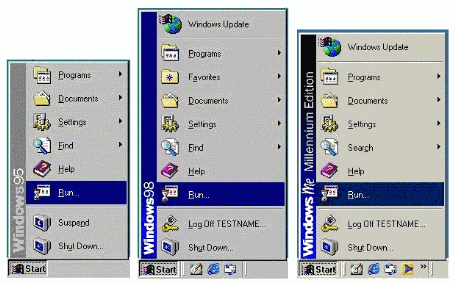
Windows 8 shall became one of the most important changes that Microsoft done into its operating system for more than a decade since Windows 95…

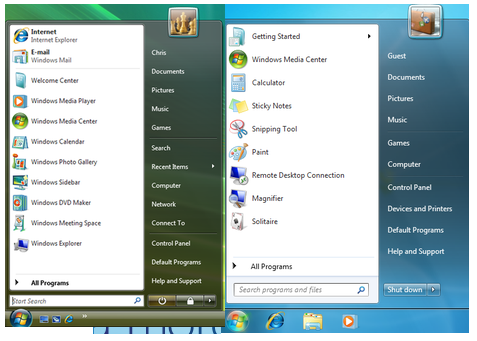
Let’s take a look first at the aging Start Menu from Windows 95 to Windows 7…

image

vista7startmenu

looks the same and feels older now - right?

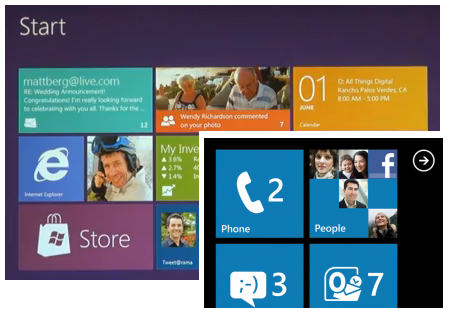
A new Beginning Design UI for Windows 8

Seeing the new version having a new platform that supports ARM and several technologies at CES 2011, we've been excited for the upcoming Windows 8 for a long long time, downloading those fake leaks, and thankfully, Windows 8 was shown to the public for the first time with new UI that looks like Windows Phone and was designed to be really fast and fluid for Windows Tablets and PCs.

Platform support for new design

News designs by Intel, ARM Snapdragon processor, AMD, Texas Instruments Omap and Nvidia.

User Interface Features

Start Screen Tiles

tiles

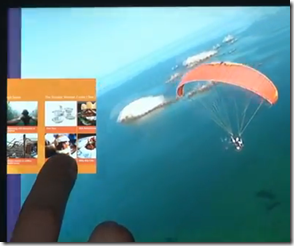
Swipe Apps feature

swipeapps 

- Sliding from left to right

Snap to dock feature

snapsnapintoplace

you can drag to resize the width

dragtochangesizes  

HTML 5 and Javascript Programming

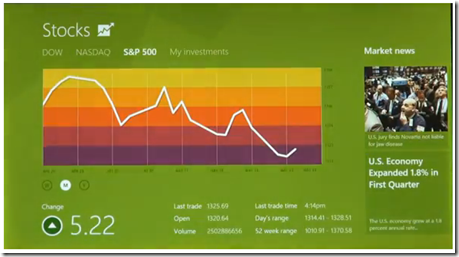
The new platform is based on new web technologies so, it will maximize the touch features using HTML 5 and Javascript that will allow million of developers to create a new kind of app with Windows 8 – really cool… right?

stocksmore

Apps are fullscreen and beautiful designed for touch technologies…

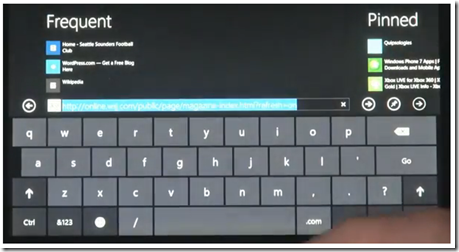
Internet Explorer 10 – Touch First UI and Switching Tabs

ie10more

Touch Keyboard

touchkeyboards

with thumbs layout for easy typing

thumbslayout

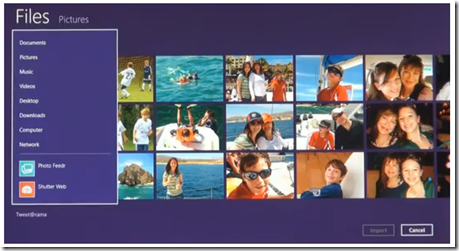
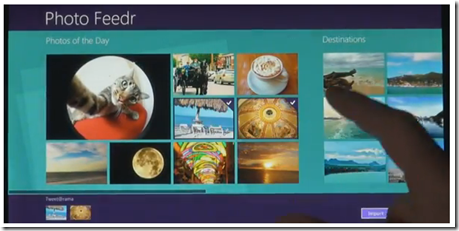
Windows 8 Apps

apps

photofdr

Anyway, you can always go back to the good old look of windows afterwards…

Let’s also wait for the “business and techie” features in the coming weeks.

Can’t wait!!!

Thanks for reading the quick view of “a more and beautiful” Windows 8…


Read more...

Unlock For Us

Save Energy by Adding “Turn Off Monitor/LCD” to Folders and Orb Ball in Windows 7 and Vista

Are you the type of person who always do-the-right thing? Monitor corresponds to 42-43% usage in power consumption everyday. If you have plenty of computers in your house, this tip will save you a lot of electricity bills from your pocket.

image_thumb_3[1]

Laptops and bulky CRT monitors are one of the useful application of this tip. When you buy laptops, there are only few manufacturers that adds turn off monitor key from your keyboard, you can only lessen the brightness level but you can’t totally turn it off instantly..

Windows 7 Folders and Desktop - Adding them to all folders is really useful
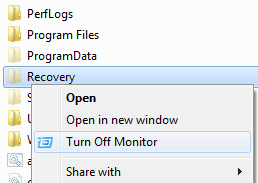
folders

Right Click any Folder name that you want, and click “Turn off Monitor” using the LEFT SIDE BUTTON of your Mouse. wow!!!

For Windows Vista – adding the option to Orb Ball (Start Menu) is available
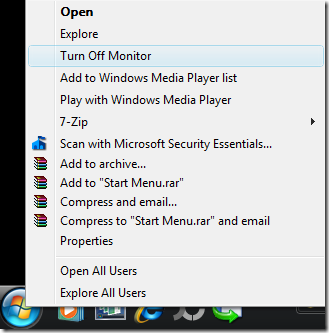
vistacontextmenu

Right Click the Orb Ball, and click “Turn off Monitor” using the Left side Button of your Mouse.

Quick and Easy!

How to add the “Turn Off Monitor” option using Windows 7 and Vista

Download the software Winbubble, extract the zip file and install the tool. Once the tool is already been installed, launch the tool until it finishes setting up some bitmap conversions from Windows 7 Wallpapers.

Once, it has been open, go to the Tools Tab and click the Folder/Start Menu option and use the settings below.

 contextmenuentry7

Name: Any name that you want

Command: "C:\Program Files\WinBubble\WinBubble 2\Tools\htool.exe" /m

Tip: you can try if the tool works by pressing Win+R and by copying the path above and press enter.. If the Monitor turns Off, great!!!

Available only in Windows 7

Icon: just use the browse […] button to select any icon that is available from windows
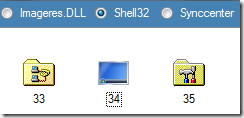
shell32

Desktop Icon

c:\windows\system32\shell32.dll,34

startmenuicon Start Menu Icon

c:\windows\system32\shell32.dll,39

runicon Run Icon

c:\windows\system32\shell32.dll,24

Afterwards, Click the Add Button. That’s it!

Try also adding the option to your desktop…

desktopturnoffmonitor

Cool right? Enjoy!!!


Read more...


© Unlock For Us @2024| Blogger| License Agreement