Unlock For Us

Quickly Get PC Information using WinGuggle 2.3

icon Making sure that you have a list of serial keys of your computers at home or office is one of the things that you must do to prevent problems in the future. For example, If you've lost your product key or the sticker is already erased, your computer is full of viruses and you need to backup the basic information for your device drivers and others - this is very difficult to recover if you will just look for it at your registry.

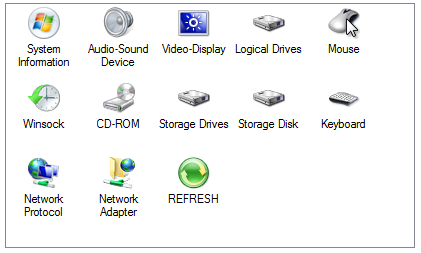
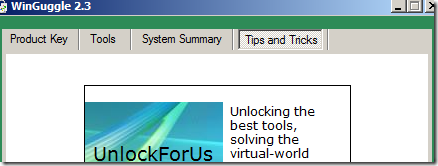
The program provides quick way to get your Windows and Office Product key, and PC System Information.

You just need few minutes to properly save and backup. Just copy and paste the information that you need.

Sample backup using Excel

backup

System Summary Tab

systemsummary3

Alpha Version Screenshot

Program Screenshots

Basic Theme

basic

Using Standard Theme

standard

Windows 7 Aero Theme

aero

Windows XP Version (White Color Scheme)
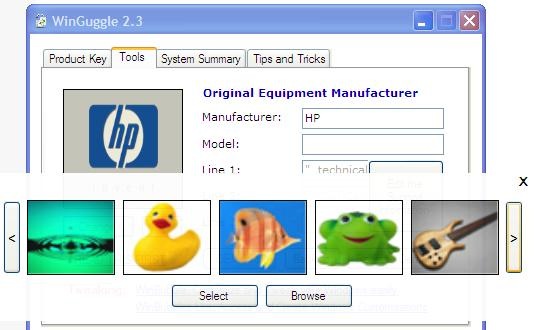
xp32

WinGuggle 2.3  (Final version)

  • Refresh option was added
  • System Summary - Combination of dxdiag and msinfo32 
    functionality
  • Office Works 9 Product Key Recovery
  • Office 2010 (Home, Student, Business and Professional) Serial Key Recovery
  • Windows Registry Redirection code is now fully functional
  • Bug fixes for Windows 7 - 32 and 64 bit version, Vista and XP

Download Here 

Other
Tab appearance flattens if Color Scheme changed
Different appearance for Windows XP version

For Windows XP Users

If error occurs, you need to download or add any of the version of .Net Framework

.Net Framework 3.0
http://download.microsoft.com/download/3/F/0/3F0A922C-F239-4B9B-9CB0-DF53621C57D9/dotnetfx3.exe

.Net Framework 2.0
http://download.microsoft.com/download/5/6/7/567758a3-759e-473e-bf8f-52154438565a/dotnetfx.exe

Transparency for the Updates

Quality Assurance (QA) as of February 9, 2011

winguggle23

Problem and Solutions Initial Actions
     
logical disk for 64-bit version feature remove by Microsoft detection added
compile separate version for 64-bit version test several times compiled new and tested
Registry redirection write and update code updated and tested
Office Works Product Key Recovery new feature code added
User rights while launching the program code update done
Cannot find Video Codec option - XP code update code updated and tested
Revision of Icons for Windows XP System Summary find new icons and update the code skipped for version 3
Hardware and Video Codec Icon for Windows 7 32bit fix  
recompile and test the updated 64-bit code   done
office 2003 in 64 bit version for checking registry redirection code   checked

Target Release Date: Feb 13, 2011

Thank you and Stay tuned for more softwares!


Read more...

Unlock For Us

Show/Hide Internet Explorer Download Complete Window

 showhide

After downloading a file, you need to open the folder location or the file itself then suddenly, the download complete notification window did not show up…

This is a quick tip that enables the user to take control of some of the small things especially in Internet Explorer.

go to the Tools – Internet Options

toolsoption

Advance Tab - Browsing Group

downloadwindow

To turn on the feature > Click to Check “Notify when downloads complete” option

Enable the Download Notification feature using the Registry Editor

Open your Registry Editor (regedit.exe) and go to the registry path

HKEY_CURRENT_USER\Software\Microsoft\Internet Explorer\Main

notifydownloadcomplete

Locate the value name NotifyDownloadComplete and if the value is "no” it means to enable the notification feature, you need to have a value of “yes”.

Happy New Year and thanks a lot for reading the article!


Read more...

Unlock For Us

Windows Update Registry Hacks

Updates are additions to software that can prevent or fix problems in the future, enhance security, improve the computer performance and stability. It is free of charge as part of maintenance and support services for your Windows computer.

winupdate

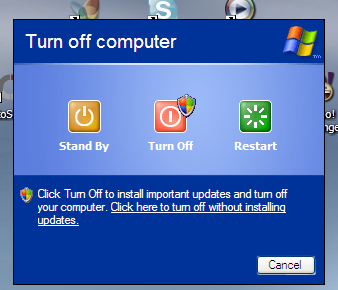
Remove or Disable Windows Update through Start Menu Power Button and Shutdown Dialog Window

Get annoyed with  Windows update changing the sleep/shutdown to “Install Updates and Shutdown”?

shutdownhp

shutdownvista

Stop Windows Update from hijacking your computer! Open your Registry Editor (regedit.exe) and go to this registry location 

 HKEY_CURRENT_USER\Software\Policies\Microsoft

registryl3


If you can’t find Windows\WindowsUpdate\AU Registry Keys, create one by using the Right-Click portion of your Mouse > New > Key Sub-menu


Removing the Windows Update as Default Option 

createdword3

Create New Registry Value name NoAUAsDefaultShutdownOption with a value of 1

Windows XP Results

noauasdefault1

Windows Vista and 7…

noauasdefaultstartmenu

If you want to get rid of the entire option, create a registry dword value name NoAUShutdownOption with a value of 1

NoAUShutdownoption

Disable Force Auto Update Reboot while Logged On

Is Windows Update restarting your system unexpectively? Create a registry dword value name NoAutoRebootWithLoggedOnUsers with a value of 1

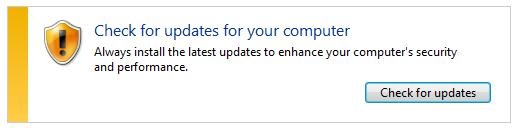
Prohibits Windows from searching for updates

Registry Location

HKEY_LOCAL_MACHINE\SOFTWARE\Policies\Microsoft\Windows\WindowsUpdate\AU

Create a registry value name NoAutoUpdate with a value of 1

Result

checkforupdates

Automatic Windows Update Search is Enabled

autoupdate_chrink

Allow Automatic Updates immediate installation

“Automatic installation of certain updates that neither interrupt Windows services nor restart Windows”

Create a registry name AutoInstallMinorUpdates with value of 1 to silently install minor updates.

Note

You can remove some updates, but not updates that affect important operating system files. You should only remove an update if you’re sure that it’s causing the problem through Add or Remove Programs (XP) and Program and Features (newer version of Windows).

That’s it! Hope this tip saves you a lot of time for fixing your computer problems…

Source(s)

MS Windows Server 2003 SP2 Policies

http://WindowsForUs.com?technetmsdnau


Read more...
Unlock For Us

Cheap CD-ROM Audio System in your Workplace

With good work place design, especially if your working at home, you can create stations at work where people will be productive, innovative and happy.

design


This is one of the things that I’m studying for the past few weeks. Designing my workstation for all kinds of people.

The thing is, you can’t work and stay at the same position the whole day. Sometimes, even if you don’t want to, you need to go outside or sometimes relax.

The truth is, I already put the system in my small computer shop business and it works flawlessly with all kinds of people the whole day. wow!!!

Here’s what you need:

  • Old ATX Power Supply or any as long as it has 5v and 12v power output - find some junk PC at home and remove the power supply or just buy one around 6-9 dollars
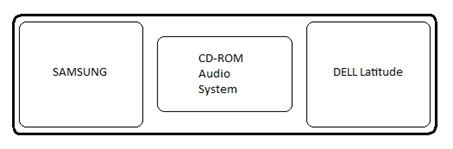
  • Old CD-ROM Drives with Play and Stop (as many as you can - in my case 3-CDROM cost $2 each)

 schematic

Simply Plug the power supply > connect the Computer Speaker to Headphone input > put your Audio CDs and push the Play Button

That’s it! Nice and Easy way of creating your own CD-ROM Audio System Station.

Have a great day!


Read more...

Unlock For Us

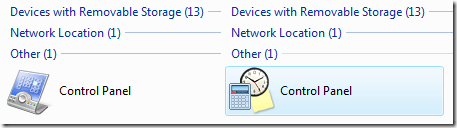
Show Control Panel in my Computer for other version of Windows

compwindow 

controlpanel

This is one of the features in Windows XP that lets you add Control Panel icon to My Computer using the Folder Options Window.

showmycomputer

Back in Windows XP days, users use the option using Windows Key + E to launch My Computer window and access Control Panel by clicking the icon. For other version of Windows, you can do this using a registry hack or use my software called WinBubble - to add Control Panel, Applications and other Folders as well.

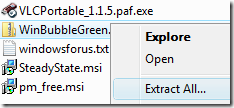
Download the portable version of WinBubble (e.g. Green Background or any) and extract the file…

extract

Launch the application and go to Tools Tab

tools

and use the My Computer and Control Panel Items Tool

compcptool

Name: Control Panel (or any name that you want)

File/Folder: Control.exe

Tool Tip: Provides system tools for managing your computer

Icon: %SystemRoot%\system32\imageres.dll,-27

Be creative by exploring more icons, adding folders and applications as well…

sidebaricon

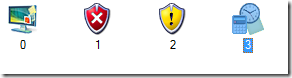
Time and Calculator Icon

C:\Program Files\Windows Sidebar\Sidebar.exe,3

Thats it! Thank you for reading the article!

Related Tip

Adding Items to My Computer and Control Panel


Read more...

Unlock For Us

Launching Welcome Center through Run Window

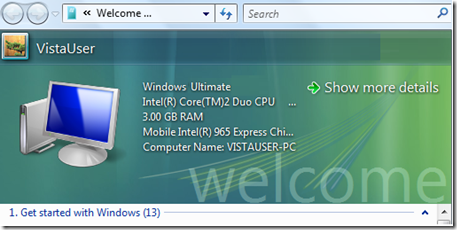
welcomecenter

Welcome Center is the users introduction of offers from Original Equipment Manufacturer (OEMs) and from Windows in Windows Vista.

According to Mr. Paul Thurrott of Winsupersite.com, Welcome Center provides three core features.

First, it provides at-a-glance information about your PC, including the currently logged-on user, the Vista product edition, some hardware, and the computer's name on the local network. Second, it provides getting started links related to Vista itself. Third, and finally, it provides a number of links to related offers from Microsoft (and, if you acquired Windows Vista with a new PC, from third parties such as the PC maker and various application makers).

If the Welcome Center was disabled during start-up and you can’t find it through Start Menu Search especially in Windows 7...

run

Try launching it through the Run Window (Win Key + R) and use the command below

rundll32 oobefldr,ShowWelcomeCenter

Thanks for reading the article!


Read more...

Unlock For Us

Save more data by clearing Google Chrome History

diskspace

Google Chrome is a browser developed by Google that combines a minimal design with new technologies that aims to be secure, fast, simple and stable.

In my experiences, Users wants to use the browser not because of its features but for its so called “branding” name.

Anyway, I’ve been using the browser since its first release and this is the first major problem that I encountered. When my hard drive was full of files and I need to save more space, Google Chrome history was one of the programs that eat plenty of space for several months now.

Clearing the Browser Data

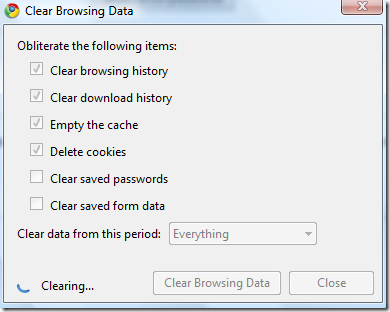
Click the wrench icon wrench- Select Tools - Clear Browsing data

For Google Chrome version 3 users and below, click the wrench iconClear Browsing data

clearing

Select any options that you want and click “Clear Browsing Data”

That’s it!

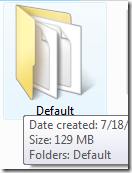
diskspacedefault


To check the occupied space of Google Chrome Cache, go to this folder location (Windows Vista and 7…)

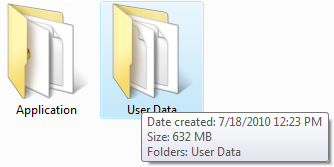
C:\Users\UserName\AppData\Local\Google\Chrome\User Data\Default


For Windows XP

C:\Documents and Settings\UserName\Local Settings\Application Data\Google\Chrome\User Data\Default

Thank you for reading the article!


Read more...


© Unlock For Us @2024| Blogger| License Agreement