Unlock For Us

Registry Entry for Anti-Virus Programs to Scan When you open attachments

scan3

This is one of the most interesting topic that I came across while looking for the registry policy for Internet Explorer Icon – not the hack version by WinBubble.

Anyway, I’m going to post some screenshots of Microsoft Security Essentials in this guide, not because I’m a fan of MS Windows, but for the reason that in my experience - it is effective in detecting malicious viruses that you came across every single day.

According to MS, the registry policy lets you manage the behavior for sending messages to registered antivirus programs to scan files that you download by using Internet Explorer or by using Microsoft Outlook Express before you open the files. If multiple programs are registered, they will all be notified.

Note

If the antivirus program fails, the attachment file is blocked from being opened. If you do not configure this policy, Windows does not call the registered antivirus programs when file attachments are opened.

Configuring the Group Policy using the Windows Registry

Launch regedit.exe or Registry Editor using the Start Menu Search and go to this Registry Subkey location

HKEY_CURRENT_USER\SOFTWARE\Microsoft\Windows\CurrentVersion\Policies\Attachments

If the registry subkey doesn’t exist, Create a New Key: Use the Right-Click of the Policies folder – New – Key

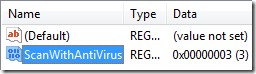
Create a folder named Attachments and inside the folder, Right-Click any space,  New – DWORD (32-Bit) Value and use the “ScanWithAntiVirus” name.

ScanWithAntiVirus Registry Name
scanwithantivirus

By default, the Group Policy setting is set to Off - registry value of the ScanWithAntiVirus registry entry is 1. When the value is set to 3, the policy is On.

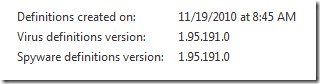
Just make sure that your virus definition is always updated
virusdefinition

Works with Windows XP Professional and above – checked with Windows Vista.


Thanks for Reading the article!


Read more...
Unlock For Us

Changing Internet Explorer Welcome Tab URL

Once upon a time, a malicious trojan invaded my computer and automatically sets registry values to Internet Explorer and every time you open a tab, www.114116.info opens.

ntab


Anyway, too good to be true.

The malicious code gave me an idea to tweak Internet Explorer Tabs with my own url address!

For example, I want to have a custom address like Google or Yahoo every time I click the new Tab. Great idea Right?!

Custom IE Tab URL Address

Launch regedit.exe or Registry Editor using the Start Menu Search or Run Window (Win Key + R) and go to this location

HKEY_LOCAL_MACHINE\SOFTWARE\Microsoft\Internet Explorer\AboutURLs

locate the “tabs” value name, and change the value to whatever web address that you want e.g. http://mail.yahoo.com

registry

If the registry hack doesn’t work, try the user registry hive

HKEY_CURRENT_USER\Software\Microsoft\Internet Explorer\AboutURLs


Thanks for reading the article!


Read more...
Unlock For Us

[Registry Fix] File not Found message with Web Browser Control

If your a developer, too busy with your work and you’ve encountered this message when your adding a Browser Functionality to your application. Here’s a quick fix and steps that you need in order to solve the problem easily.

filenotfound

What is a WebBrowser Control?

The WebBrowser or simply Internet Explorer Control adds browsing, document or data viewing, and downloading capabilities to your created Windows applications using Visual Basic 6, and Visual Studio .Net. Softwares created that uses this control will allow the user to browse sites on the Internet's World Wide Web, ftp, as well as folders in the local file system and on a network.

It maintains a history list that allows the user to browse forward and backward through previously browsed sites.

Quick and easy Solution

  • Launch the Registry Editor (regedit.exe) using the Start Menu Search or the Run Window (Windows Key + R)
  • Press Ctrl + F for search, and type “ieframe.dll\1”

find

Usually, This is the location of the value in the registry

HKEY_CLASSES_ROOT\TypeLib\{EAB22AC0-30C1-11CF-A7EB-0000C05BAE0B}

HKEY_CLASSES_ROOT\TypeLib\{EAB22AC0-30C1-11CF-A7EB-0000C05BAE0B}\1.1\0\win32

Fix the problem by changing the default value to  “ieframe.dll” only

ieframe

Thanks for reading the article!


Read more...
Unlock For Us

How to delete Virtual CD/DVD ROM Drive from My Computer

duplicate

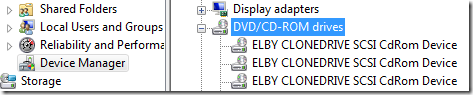
Mysterious Extra Virtual HD DVD-ROM Drive because of installation of Virtual Drive Software such as Daemon tools, Magic Disk and Virtual Clone Drive? or maybe previously removed, now non-existent CD-ROM drive… These are some simple problems that we can encounter everyday in using Windows.

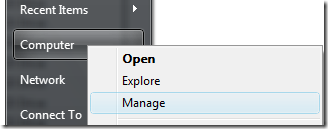
Open the Device Manager

manage

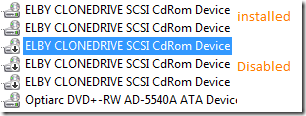
Click the Virtual Driver, and select the device

devicemanager

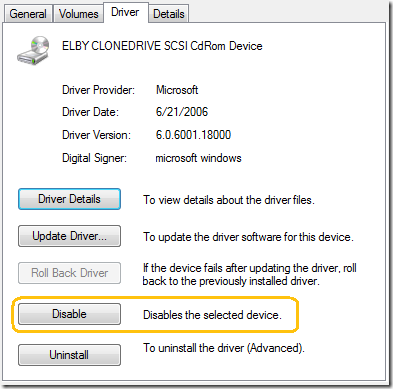
Go to the Properties and Disable the Selected Device

disable

Result

disabledicon

Uninstalling the Driver

If you want to remove them permanently - the uninstall option is the quickest way to solve the problem.

uninstall

That's it. Thank you for reading the article and have a great day!


Read more...

Unlock For Us

Hung App Time, Freeze Time and Auto End Tasks for Windows Application

If your computer is connected to a local area network and most of the time you use your computer for gaming. Sometimes, applications running slow and freezes after a few minutes… These are the problems that we can encounter every day in Windows XP, Vista and 7.

In the real world, some users became annoyed with the long waiting time of apps to responds but surprisingly, some users also preferred to see if other computers hangs in real time :(

In my research, I also observed that some children are prone to this kind of computer problems. The computer will just hung again and again even in different machines.

Registry Entries to Control Hang App Time in Windows

HungAppTimeout

This registry value specifies how long the system waits for user processes (applications) to end after the user clicks the End Task button in Task Manager.

endtask

Basically, it is a registry key to control the timeout for the task manager to determine whether or not an application is hung.

Launch the registry editor

runregedit and navigate this folder

HKEY_CURRENT_USER\Control Panel\Desktop

registryentry

Default value in Milliseconds

5000                           >>> 5 seconds

You can alter the value to any value that you want, e.g. 0.9 seconds (900 seconds) and afterwards, you need to restart your Windows.


Advance Troubleshooting Guide

Windows Error Reporting (For Hangs)

http://news.cnet.com/8301-13880_3-9900788-68.html


AutoEndTasks

Determines whether user processes (applications) end automatically.

HKEY_CURRENT_USER\Control Panel\Desktop

Default value

0 or 1

Value

Meaning

0

Processes do not end automatically. The system waits until the process ends.

1

Processes end automatically.


Stay tuned for more tips and softwares!


Read more...

Unlock For Us

Start Menu and Sub-Menu Speed in Windows

 menus

In this topic, we will discuss how to change the start menu load speed. This tweak also changes the speed in which the start menu and other menu such as right-click desktop menu and sub-menu for files and folders.

How to Control the Start Menu Display Delay

Go to Start Menu Run option

runwindow

If you can’t see the Run Window e.g. hidden, press Win+R

runregedit 

Type “regedit” to open the registry editor…

registry

Navigate the Registry editor to this path as shown in the picture above

HKEY_CURRENT_USER\Control Panel\Desktop

Find the MenuShowDelay value name and double-click to change the value data

value

Default Value

The number is in milliseconds

400 milliseconds = 0.4 seconds

You can use any number between 0 to 4000 milliseconds

e.g. 1, 2, 3, 4, 5, 6, 9

Note

If you use an entry of 0, according to Microsoft there is no menu display delay… The great thing, it feels like there is no lag while navigating any menu.

Microsoft Description

Determines the interval from the time the cursor is pointed at a menu until the menu items are displayed.

Have fun!


Read more...

Unlock For Us

Amazing Free Microsoft Wallpapers for Windows XP/Vista/7

This is not an official release or news but simply a hack version to get Wallpapers from Microsoft for FREE.

mswallpaperfree

You can get a high resolution images without any charge and directly download it from Microsoft Website and do some manipulation, editing and tricks.

wallpapersfree

It’s amazing and can be used in XP, Vista and Windows 7

mswallpaper

How to get the Free Wallpapers

The truth is… the wallpapers can be downloaded through the personalization gallery and was designed for Windows 7.

Desktop Backgrounds

You will noticed that there are only few images that you can download. To get more desktop backgrounds (wallpapers), you need to do some tricks first.

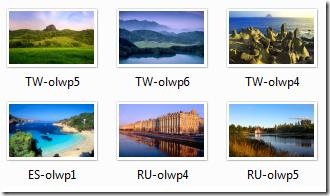
  • Download the best themes that you like from here

placeslandscapes

  •  

  •  

  •  

  •  

  •  

  •  

  •  

  •  

  •  


  • You need to install 7-zip to extract the themes http://WindowsForUs.com?7zip

  • Afterwards, right-Click the file .themepack and extract the file

 extract

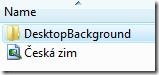
Open the folder and start exploring the files!!

desktopbackground

Have Fun!!!


Read more...


© Unlock For Us @2024| Blogger| License Agreement